How to Build a High-Performance Gaming PC
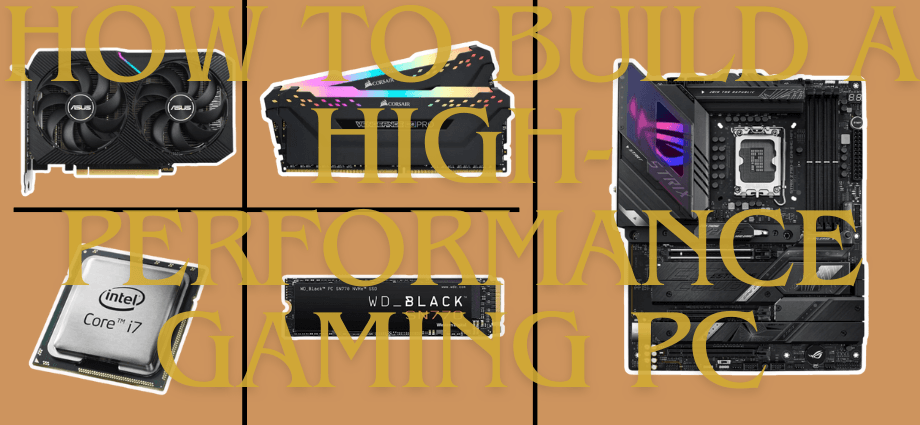
Building a high-performance gaming PC allows you to customize your system to fit your exact needs, ensuring an immersive and smooth gaming experience. While it might seem complex, assembling your own gaming rig is not as difficult as it sounds. This guide will help you choose the right components, assemble them properly, and configure the system for optimal gaming performance.

Choosing the Right Components
The first step in building your gaming PC is selecting the right components. Choosing quality parts will ensure your system runs smoothly and performs at its best during gaming sessions.
Selecting the Processor (CPU)
The CPU is one of the most important components of your gaming PC. Look for a processor that provides enough power for gaming and multitasking. Intel’s Core i7 or i9 processors and AMD’s Ryzen 7 and Ryzen 9 are solid choices for gaming performance. High clock speeds are crucial, as they determine how fast the CPU can process data. A higher clock speed generally leads to better gaming performance, so aim for processors with speeds above 3.0 GHz.
Choosing the Graphics Card (GPU)
The GPU is perhaps the most critical part of your gaming setup. A powerful GPU ensures smooth frame rates and high-quality graphics, particularly at high resolutions. NVIDIA’s GeForce RTX 30 and 40 series offer cutting-edge performance, with excellent ray tracing and AI-driven capabilities. AMD’s Radeon RX 7000 series is a competitive option, offering great value for gamers looking for solid performance without breaking the bank. Make sure to select a GPU with at least 8GB of VRAM to handle modern games effectively.
Picking the Motherboard
Your motherboard acts as the backbone of your PC, connecting all components. When selecting a motherboard, make sure it supports the CPU and provides the necessary slots for other components like RAM and storage. Intel motherboards with a Z690 or Z790 chipset are ideal for Intel processors, while AMD B550 or X570 boards are a good match for Ryzen CPUs. Additionally, choose a motherboard that fits your case, as the form factor (e.g., ATX, micro-ATX) can vary.
Storage Solutions
For fast load times and seamless gameplay, an SSD is essential. SSDs are much quicker than traditional hard drives and help reduce boot times and loading screens in games. Opt for an NVMe M.2 SSD for the best performance, and consider adding a larger HDD for additional storage if needed. A 1TB SSD should be sufficient for most gaming needs.
RAM Selection
RAM plays an essential role in multitasking and gaming performance. For most gamers, 16GB of RAM is more than enough, but if you want to future-proof your build, 32GB is a good choice. Aim for RAM with speeds between 3200MHz and 3600MHz to ensure smooth performance. Choosing a reputable brand, like Corsair or G.SKILL, ensures reliability.
Assembling Your Gaming PC
With your components in hand, it’s time to put everything together. The process might seem intimidating at first, but following a few straightforward steps will make assembly easy.

Preparing the Workspace
Before starting, make sure you have a clean, spacious, and well-lit area for building your PC. Having a flat, stable surface will make assembly smoother. Keep tools like a screwdriver and cable ties handy, and consider wearing an anti-static wrist strap to protect your parts from static electricity.
Installing the CPU and Cooler
Start by installing the CPU into the motherboard. Align the CPU correctly with the socket, making sure it fits snugly. Once the CPU is in place, apply thermal paste (if your cooler doesn’t have pre-applied paste) and install the cooler. The cooler helps prevent the CPU from overheating, ensuring smooth performance during long gaming sessions.
Installing the RAM
Next, insert the RAM sticks into the memory slots. Ensure that the sticks click into place and are properly seated. For dual-channel configuration, place the RAM sticks in the correct slots according to your motherboard manual (usually slots 1 and 3, or 2 and 4).
Installing the Motherboard
Once the CPU and RAM are installed, it’s time to mount the motherboard into the case. Align the motherboard with the standoffs inside the case and secure it with screws. Make sure that the ports at the back of the motherboard align with the case’s rear panel.
Installing the GPU and Storage Drives
Now, insert the GPU into the PCIe x16 slot on the motherboard and secure it with screws. For storage, insert your SSD or HDD into the drive bays and connect them to the motherboard using the appropriate cables (SATA for traditional drives or M.2 for SSDs).
Wiring and Cable Management
Connect the power supply unit (PSU) cables to the motherboard, GPU, and storage devices. Proper cable management is important not only for organization but also for airflow. Use cable ties to keep everything neat and ensure that cables don’t block airflow to the components.
Configuring the System for Optimal Performance
Once your PC is physically assembled, the next step is setting up the system for peak performance.
Installing the Operating System
Install your operating system, typically Windows for gaming. You can use a bootable USB drive to install the OS, and once it’s up and running, follow the on-screen instructions to set everything up.
Updating Drivers
After installing the OS, the next step is to update the drivers for the CPU, GPU, and motherboard. Updated drivers ensure compatibility with the latest games and optimize the performance of your system.
BIOS Settings and Overclocking
Next, enter the BIOS to configure system settings for performance. Enable XMP (Extreme Memory Profile) for faster RAM speeds and, if desired, adjust CPU settings to improve performance further. If you’re comfortable with overclocking, you can push your CPU or GPU to run faster, but make sure to monitor temperatures closely to avoid overheating.
Testing the System
To ensure everything is working correctly, run a few benchmark tests. Programs like 3DMark and Cinebench can help evaluate the performance of your CPU and GPU. If your system performs well in these tests, you’re ready to enjoy high-quality gaming.
Final Tips and Troubleshooting
Building a gaming PC is an exciting experience, but there are a few things to keep in mind as you go along.
Cooling and Maintenance
Keeping your system cool is essential for maintaining performance. Install additional fans if needed and make sure the case has good airflow. Over time, dust can build up inside the case, so it’s important to clean it regularly to prevent overheating.
Troubleshooting Common Issues
If you encounter issues such as no display or system crashes, try the following:
- Ensure all cables are securely connected.
- Reseat the RAM and GPU.
- Check for BIOS updates or reset the BIOS if necessary.
Conclusion
Building a high-performance gaming PC is a rewarding project that lets you customize your system to your specific needs. By carefully choosing the right components, following the correct assembly steps, and configuring the system for optimal performance, you’ll have a PC that can handle the latest games with ease. Enjoy the process, and happy gaming!
Share this content:
