How to Back Up Your Data Safely and Easily
In today’s digital world, safeguarding your data is more important than ever. Whether it’s precious photos, critical work files, or personal information, data loss can have serious consequences. Creating regular backups ensures that your data is protected from unexpected events like hardware failures, accidental deletions, or cyberattacks. This guide will help you back up your data safely and efficiently.
Understanding the Basics of Data Backup
Before diving into the process, it’s important to understand what data backup involves and why it’s crucial.
Types of Data to Back Up
Identify what data needs protection, including personal files such as photos and videos, work-related documents, and application settings. Backing up a wide range of files ensures preparedness for any scenario.
Common Causes of Data Loss
Data loss can result from various issues, including hardware failures, accidental deletions, or cybersecurity threats like ransomware. Being aware of these risks underscores the importance of reliable backups.
Key Backup Methods
There are several methods for backing up data. Full backups create a complete copy, while incremental backups save only recent changes. Differential backups store modifications since the last full backup. Choose a method based on the size and frequency of your backups.
Choosing the Right Backup Solution
Selecting the right backup solution ensures efficiency and reliability.
Cloud-Based Backup
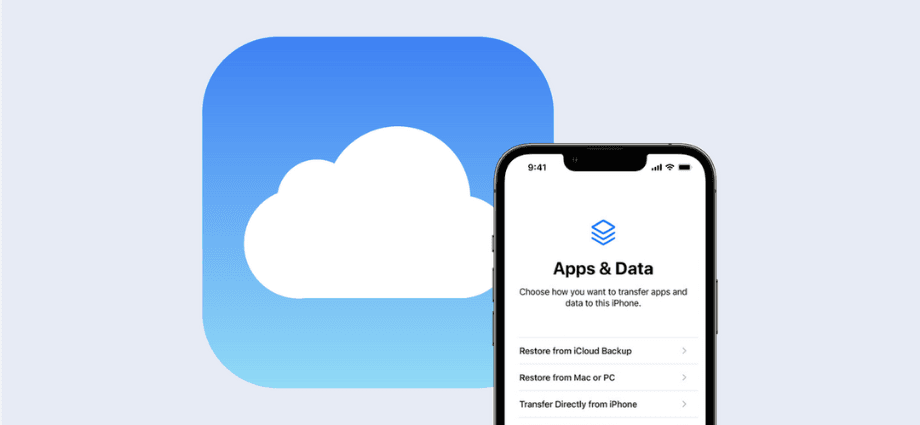
Cloud storage services, such as Google Drive, Dropbox, and iCloud, offer accessibility and scalability. These platforms automate backups and allow you to access data from multiple devices. Security measures like encryption safeguard your data from unauthorized access.
External Storage Devices

Physical storage options, including external hard drives and USB flash drives, provide offline backup solutions. Regularly update these backups and store the devices securely to protect against damage or theft.
Network-Attached Storage (NAS)
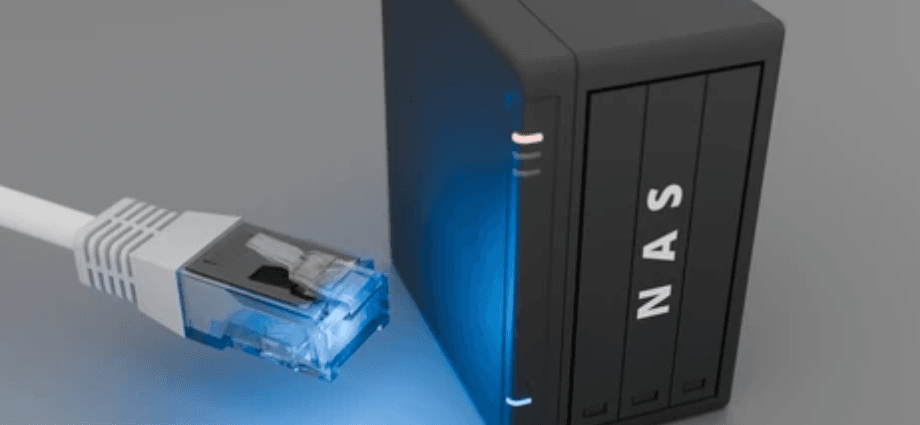
For advanced users, NAS systems offer centralized data storage with multi-user support. While they require an initial setup, they provide long-term convenience and robust management capabilities.
Step-by-Step Guide to Backing Up Data
Follow these steps to create effective backups.
Assess Your Data
Identify critical files and folders, organize them to minimize redundancy, and estimate your storage requirements. This preparation simplifies the backup process and ensures all essential data is included.
Set Up a Backup Schedule
Regular backups reduce the risk of losing recent data. Automate backups using built-in tools or third-party software and schedule them during low-usage hours to avoid disruptions.
Test Your Backup
Verify that your backups are complete and functional by restoring a few files. Testing ensures that your data remains accessible in case of emergencies.
Tips for Keeping Your Backup Safe
Protecting your backups from physical and digital threats ensures their reliability.
Secure Your Backup Devices
Encrypt external drives to prevent unauthorized access and store them in secure, temperature-controlled environments. Use protective cases to safeguard against fire and water damage.
Protect Cloud Backups
Enable two-factor authentication for cloud accounts and use strong, unique passwords. Avoid uploading sensitive data to unsecured cloud platforms.
Maintain Redundant Backups
Follow the 3-2-1 rule: keep three copies of your data on two different media, with one stored off-site. This redundancy minimizes the risk of total data loss.
Specialized Backup Needs
Tailored solutions address specific scenarios, such as mobile devices, work files, and system settings.
Backing Up Mobile Devices
Use cloud services like Google Photos or iCloud for automatic backups. Sync contacts, calendars, and messages, and consider external storage options for added flexibility.
Backing Up Work Files
Professional data benefits from collaboration tools like Microsoft 365 or Slack, which offer built-in backup features. Enable version history for easy recovery and ensure compliance with data security regulations.
Backing Up System Settings
Save system settings to simplify recovery during failures. Create system images, export browser preferences, and back up configurations for quick restoration.
Common Mistakes to Avoid
Avoid these errors to ensure your backups are effective and reliable.
Relying on a Single Backup
Storing all backups in one location increases vulnerability. Diversify storage methods and locations to enhance security and regularly update backups.
Skipping Backup Tests
Unverified backups can fail during emergencies. Test backups periodically to ensure functionality and make adjustments as needed.
Overlooking Backup Security
Neglecting encryption and security updates leaves backups at risk. Regularly update passwords and settings to protect against breaches.
Conclusion
Backing up your data safely and easily is essential for protecting your digital assets. By choosing the right solutions, maintaining a consistent schedule, and securing your backups, you can safeguard your personal and professional information. Start building a robust backup strategy today to enjoy peace of mind and ensure your data is always within reach.
Share this content:
