How to Install and Set Up TP-Link Deco Mesh Wi-Fi

A reliable home network is essential in today’s connected world. TP-Link Deco Mesh Wi-Fi offers a seamless solution for expanding and enhancing your internet coverage. This guide will walk you through the steps to install and set up your Deco system, ensuring you enjoy a strong and stable Wi-Fi connection throughout your home.
Understanding TP-Link Deco Mesh Wi-Fi
Mesh Wi-Fi systems are changing the way homes stay connected. By using multiple devices to distribute the signal evenly throughout your space, these systems eliminate frustrating dead zones and ensure seamless internet coverage. TP-Link Deco is one of the most popular options for creating a robust and unified Wi-Fi network.

What is Mesh Wi-Fi?
Mesh Wi-Fi systems use multiple devices, called nodes, to create a single, unified network. Unlike traditional routers that rely on one device to broadcast the signal, mesh networks distribute the connection across several points. This setup eliminates dead zones and provides consistent coverage in every corner of your home.
Features of TP-Link Deco
TP-Link Deco offers several features designed to enhance your internet experience. It ensures seamless coverage by maintaining strong Wi-Fi signals in every room. The user-friendly Deco app makes managing your network easy, allowing you to monitor and control your connection with ease. Additionally, Deco includes advanced security features to protect your network from potential threats.
With these features, Deco stands out as a reliable choice for home networking needs.
Why Choose TP-Link Deco?
TP-Link Deco is favored for its ease of use and robust performance. Users appreciate the straightforward setup process and the ability to expand their network effortlessly. Deco’s compatibility with various smart home devices makes it a versatile option for modern households. Choosing TP-Link Deco means investing in a network that grows with your needs, providing both reliability and flexibility.
Preparing for Installation
Setting up your TP-Link Deco Mesh Wi-Fi system is a straightforward process, but proper preparation ensures a smooth experience. By unboxing the kit, gathering necessary tools, and selecting optimal locations, you can quickly establish a reliable and seamless Wi-Fi network throughout your home.
Unboxing Your Deco Kit
Before starting the installation, ensure you have all the components. Typically, a Deco kit includes two or three Deco units, power adapters for each unit, Ethernet cables for connecting the primary Deco to your modem, and a quick start guide. Checking that all items are present will prevent delays during installation.
Required Tools and Materials
To set up your TP-Link Deco Mesh Wi-Fi, you will need a smartphone or tablet for downloading the Deco app, an active internet connection, and the Deco app itself, which is available on the App Store or Google Play. Having these tools ready will streamline the setup process.
Choosing the Right Locations
Optimal placement of your Deco units is crucial for maximizing coverage. Place Deco units in central areas of your home to ensure even distribution of the Wi-Fi signal. Avoid placing them near large metal objects or electronic devices that can interfere with the signal. Additionally, positioning Deco units on shelves or tables can enhance signal distribution, eliminating dead zones and ensuring a strong Wi-Fi signal everywhere.
Setting Up the TP-Link Deco App
The TP-Link Deco app is the cornerstone of your mesh Wi-Fi system, enabling you to configure, manage, and monitor your network with ease. By following a few simple steps, you can set up the app and ensure your Deco system is ready to provide reliable Wi-Fi coverage throughout your home.
Downloading the App
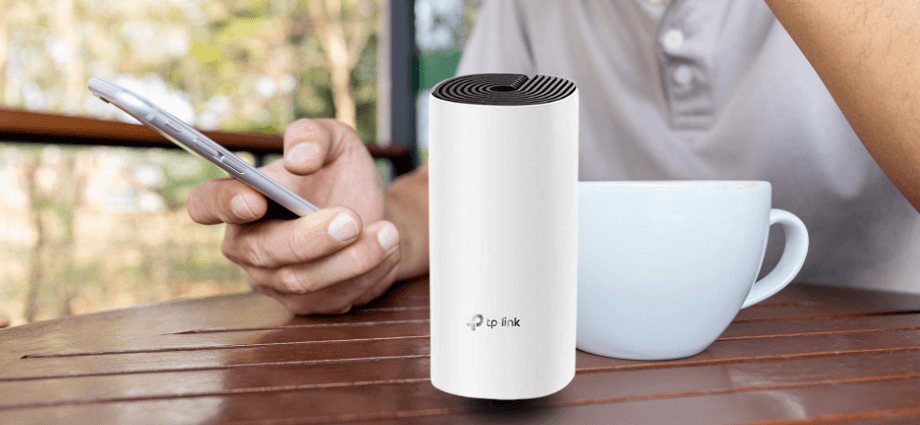
Start by downloading the TP-Link Deco app from your device’s app store. iOS users can find the app on the App Store, while Android users can locate it on Google Play. Follow the on-screen instructions to install the app on your device. The Deco app is essential for managing and configuring your mesh network.
Creating a TP-Link Account
To use the Deco app, you need to create a TP-Link account. Open the Deco app on your smartphone or tablet and follow the prompts to register a new account. After signing up, verify your account through the verification email sent by TP-Link. Having an account allows you to access advanced features and manage your network remotely.
Initial App Configuration
Once your account is set up, proceed with the initial configuration. Launch the Deco app and log in to your account. Grant the app necessary permissions for optimal functionality, such as access to your device’s location and Bluetooth. Follow the setup prompts provided by the app to complete the initial configuration. Proper configuration through the app ensures your Deco system is ready to deliver robust Wi-Fi performance.
Setting up the TP-Link Deco app is the first step towards a seamless and efficient home network.
Installing the Deco Units
Proper installation of TP-Link Deco units is essential to establish a reliable and efficient mesh network in your home. By carefully connecting the primary Deco, adding additional units, and configuring settings, you can ensure consistent Wi-Fi coverage and performance throughout your space.
Connecting the Primary Deco
Begin by connecting the main Deco unit to your modem. Plug one end of the Ethernet cable into your modem and the other end into the Deco unit’s WAN port. Connect the Deco unit to a power source and wait for the LED to light up, indicating it is powering on. Allow the Deco to boot up, which may take a few minutes. This establishes the foundation of your mesh network.
Adding Additional Deco Units
Expand your network by adding more Deco units. Position additional Deco units in different areas of your home and connect each unit to a power source. Use the Deco app to add each unit to your network by following the on-screen instructions. Adding more units enhances coverage and ensures a stable connection throughout your home.
Configuring Wi-Fi Settings
Customize your Wi-Fi network settings for optimal performance. Set a network name (SSID) that is easy to recognize and create a strong password to secure your network. You can also customize settings such as guest networks and parental controls as needed. Tailoring these settings ensures your network meets your specific needs.
Updating Firmware
Keep your Deco system up-to-date with the latest firmware. Open the Deco app and navigate to the firmware update section. If updates are available, download the latest firmware version and follow the prompts to install the update on your Deco units. Regular firmware updates improve performance and security, ensuring your network remains reliable.
Installing your Deco units correctly ensures a robust and reliable mesh network.
Optimizing Your Mesh Network
Optimizing your TP-Link Deco mesh network helps maintain seamless connectivity, improve performance, and enhance security. By managing devices, refining security settings, and troubleshooting issues, you can ensure your network runs efficiently and delivers the best possible internet experience.
Managing Connected Devices
Effectively manage the devices connected to your network to maintain optimal performance. Use the Deco app to monitor all connected devices and assign priority to important devices, such as your smartphone or laptop. Additionally, you can restrict access to certain devices if necessary, ensuring that your network runs smoothly without unnecessary strain.
Enhancing Security Settings
Protect your network with enhanced security features. Enable WPA3 encryption for the latest security standards and set up guest networks to provide internet access to visitors without compromising your main network. Regularly updating your Wi-Fi password also enhances security, safeguarding your network from potential threats.
Troubleshooting Common Issues
Address common connectivity problems with simple troubleshooting steps. Restarting Deco units can resolve minor issues, and checking all cable connections ensures everything is properly connected. If problems persist, performing a factory reset on your Deco units may be necessary. Troubleshooting helps maintain a stable and reliable network, ensuring continuous internet access.
Optimizing your mesh network ensures you enjoy a seamless and secure internet experience.
Advanced Features and Settings
TP-Link Deco offers advanced features that enhance the functionality, performance, and security of your network. By leveraging parental controls, Quality of Service (QoS), and smart home integration, you can tailor your network to meet the unique needs of your household.
Parental Controls
Manage your family’s internet usage with parental controls. You can set internet access schedules for specific devices, ensuring that children have limited screen time. Additionally, filtering inappropriate websites and content helps create a safe online environment for your children. Monitoring online activities further ensures that your family browses the internet safely.
Quality of Service (QoS)
Improve performance for specific applications with Quality of Service (QoS) settings. By prioritizing bandwidth for important applications like streaming or gaming, you ensure smooth and uninterrupted usage of high-demand services. Customizing QoS settings based on your household’s needs enhances the overall performance of your network, providing a better internet experience for everyone.
Integrating Smart Home Devices
Seamlessly connect your smart home devices to Deco to enhance your home’s connectivity and functionality. Add smart gadgets such as lights, thermostats, and security cameras, and manage these IoT devices through the Deco app. Ensuring that your smart home devices are compatible with TP-Link Deco allows for easy integration and centralized control, making your home smarter and more efficient.
Maintenance and Support
Proper maintenance and access to support resources are crucial for keeping your TP-Link Deco system running smoothly. Regular updates, accessible support options, and scalability features ensure your network remains reliable, secure, and adaptable to your needs.
Regular Firmware Updates
Keep your network secure and efficient with regular firmware updates. Enabling automatic firmware updates in the Deco app ensures your system is always up-to-date with the latest features and security patches. Additionally, manually checking for updates periodically can help you stay informed about new improvements and enhancements, maintaining optimal network performance.
Accessing TP-Link Support
Get help when you need it with TP-Link’s support options. You can access support via phone, email, or live chat, ensuring assistance is available whenever you encounter issues. Utilizing the TP-Link website for FAQs, guides, and troubleshooting tips can also provide valuable information. Engaging with community forums allows you to share experiences and solutions with other users, enhancing your support options.
Extending Your Mesh Network
Expand your network as your needs grow by adding more Deco units. This is particularly useful for larger or multi-story homes where additional coverage is required. Scaling your network ensures strong Wi-Fi signals throughout your home, and future-proofing your setup allows you to accommodate new devices and users without compromising performance.
Extending your mesh network ensures continuous and reliable coverage as your home evolves.
Conclusion
Installing and setting up TP-Link Deco Mesh Wi-Fi is straightforward and enhances your home network’s performance. By following these steps, you can enjoy seamless and reliable internet coverage throughout your home. Regular maintenance and utilizing advanced features will ensure your network remains secure and efficient. Embrace the power of TP-Link Deco to transform your internet experience.
Share this content:
