Setting Up the Samsung Galaxy Tab S9 for the First Time
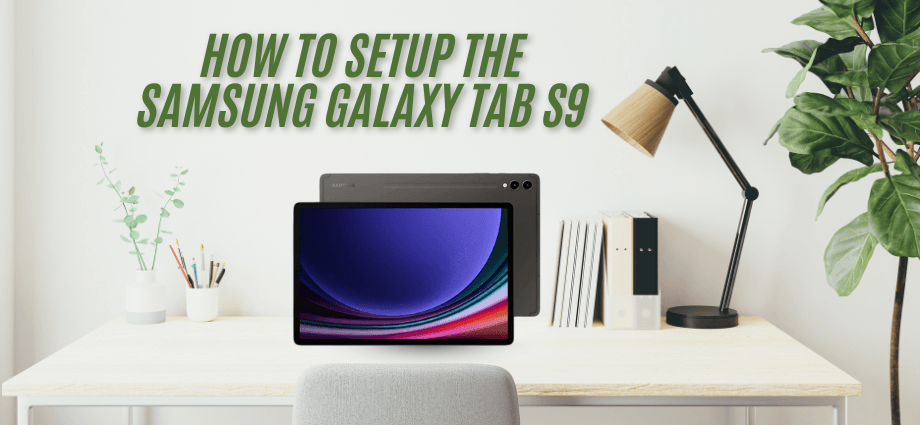
Setting up your new Samsung Galaxy Tab S9 is an exciting process that ensures you get the most out of your device. Proper setup allows you to enjoy all the features and functionalities right from the start. This guide will walk you through each step to help you get your tablet up and running smoothly.
The Samsung Galaxy Tab S9 is a powerful tablet designed for both work and play. It offers a sleek design, high-resolution display, and robust performance. Setting up your tablet correctly is essential to make the most of its features and ensure a seamless user experience.
Unboxing Your Samsung Galaxy Tab S9
Unboxing your Galaxy Tab S9 is the first step in your new device journey. Here’s what to expect when you open the box.
What’s in the Box
When you purchase the Samsung Galaxy Tab S9, the box typically includes the tablet itself, a charger with a USB-C cable, an S Pen for note-taking and drawing, a user manual, and sometimes a protective case to keep your device safe.
Inspecting the Device
Before setting up, check your tablet for any physical damage. Ensure that all components, such as the charger and S Pen, are included and undamaged. This step helps you address any issues immediately by contacting customer support if needed.
Initial Power-Up
To turn on your Galaxy Tab S9 for the first time, press and hold the power button located on the side of the tablet. Wait for the Samsung logo to appear on the screen, then follow the on-screen instructions to begin the setup process. Starting your tablet correctly ensures that all initial configurations are properly installed.
Connecting to the Internet
Connecting your Galaxy Tab S9 to the internet is crucial for downloading apps, accessing online services, and keeping your device updated.
Choosing Between Wi-Fi and Cellular
You can connect your tablet using either Wi-Fi or cellular data. Wi-Fi is ideal for home or office use with strong, stable connections, while cellular data is useful when you’re on the go and need internet access without relying on Wi-Fi networks. Selecting the right connection depends on your location and usage needs.
Setting Up Wi-Fi
To connect to a Wi-Fi network, open the Settings app, tap on Connections, and then select Wi-Fi. Choose your network from the list, enter the password, and tap Connect. Ensuring a stable Wi-Fi connection allows for smooth browsing and app downloads.
Activating Cellular Data (if applicable)
If your Galaxy Tab S9 supports cellular connectivity, insert the SIM card into the designated slot. Then, go to Settings > Connections > Mobile Networks and activate cellular data. This feature ensures you stay connected wherever you are, without depending solely on Wi-Fi.
Signing Into Your Samsung Account
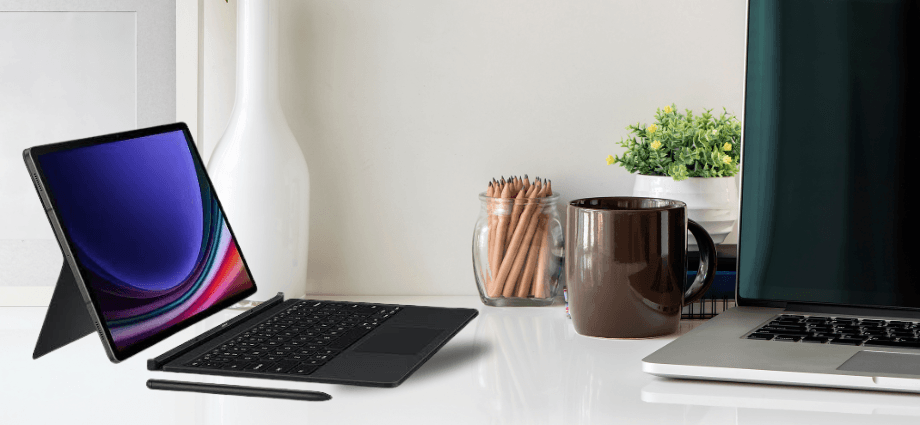
Signing into your Samsung account unlocks a range of features and services that enhance your tablet experience.
Creating a Samsung Account
If you don’t have a Samsung account, open the Settings app, tap Accounts and Backup, then Accounts, and select Add Account followed by Samsung Account. Follow the prompts to create your account. A Samsung account allows you to back up your data and access exclusive Samsung services.
Signing In
To sign into your existing Samsung account, navigate to Settings > Accounts and Backup > Accounts, select Samsung Account, and enter your credentials. If you forget your password, use the Forgot Password option to reset it.
Syncing Your Data
Syncing your data ensures that your contacts, calendars, and other important information are backed up and accessible across devices. Go to Settings > Accounts and Backup > Accounts, select your Samsung account, and enable Sync for the desired data types. Managing your sync settings allows you to control what data is updated automatically.
Personalizing Your Tablet
Personalizing your Galaxy Tab S9 makes it uniquely yours and enhances your user experience.
Setting Up Your Home Screen
Customize your home screen by adding and arranging apps. You can add apps by tapping and holding an app icon and dragging it to your home screen. Arrange them in a way that suits your usage, and add widgets by long-pressing on the home screen, selecting Widgets, and choosing your favorites. Personalizing your home screen helps you access your most-used apps quickly.
Configuring Notifications
Managing notifications ensures you receive important alerts without being overwhelmed. Go to Settings > Notifications to select which apps can send you notifications. You can also set preferences for sounds, vibrations, and banners. Additionally, enable Do Not Disturb during specific times to silence notifications when needed.
Adjusting Display Settings
Optimize your tablet’s display for comfort and battery life by adjusting brightness levels, setting screen timeout durations, and selecting display modes like Night Mode to reduce blue light. These adjustments enhance your viewing experience and help prolong battery life.
Installing Essential Apps
Installing essential apps on your Galaxy Tab S9 helps you make the most of your tablet’s capabilities.
Accessing the Google Play Store and Samsung Galaxy Store
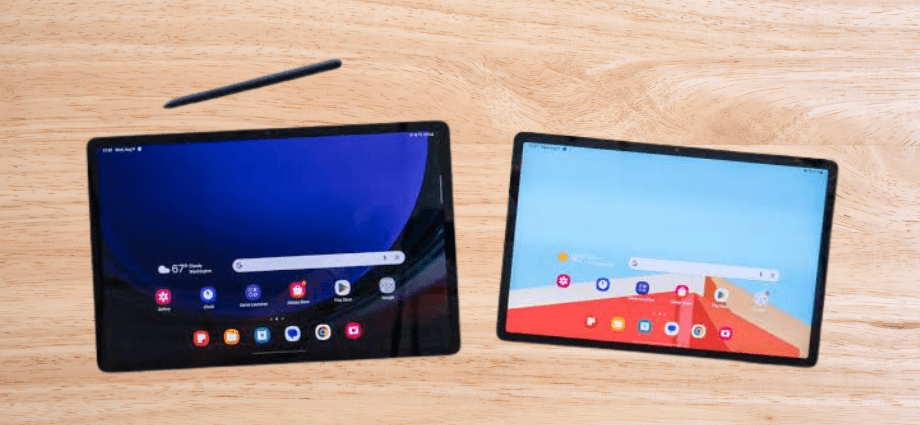
The Galaxy Tab S9 offers access to both the Google Play Store and the Samsung Galaxy Store. The Google Play Store provides a vast library of apps for productivity, entertainment, and more, while the Samsung Galaxy Store offers exclusive Samsung apps and themes.
Downloading and Installing Apps
To download apps, open either the Google Play Store or Samsung Galaxy Store, search for the desired app, and tap Install. Recommended essential apps include Microsoft Office for productivity, Netflix for entertainment, and Samsung Knox for security. These apps enhance your tablet’s functionality and cater to various needs.
Organizing Your Apps
Keep your apps organized for easy access by creating folders. Drag one app icon over another to create a folder and rename it based on its contents. Removing unwanted apps is simple—long-press an app and select Uninstall. Organizing your apps helps maintain a clutter-free home screen and improves navigation.
Setting Up Security Features
Securing your Galaxy Tab S9 protects your personal information and ensures your device is safe from unauthorized access.
Creating a Secure Lock Screen
Set up a lock screen to prevent others from accessing your tablet. Go to Settings > Biometrics and Security > Screen Lock Type and choose from options like PIN, pattern, password, fingerprint, or facial recognition. Using biometric options like fingerprint or facial recognition provides quick and secure access.
Enabling Find My Tablet
Activating Find My Tablet helps you locate your device if it’s lost or stolen. Navigate to Settings > Biometrics and Security > Find My Mobile, turn on Find My Mobile, and ensure Remote Controls is enabled. You can now track your tablet using Samsung’s Find My Mobile service online, giving you peace of mind.
Managing App Permissions and Privacy Settings
Control which apps have access to your data to protect your privacy. Go to Settings > Privacy > Permission Manager to review and adjust permissions for each app, such as access to your location, camera, or contacts. Disabling unnecessary permissions safeguards your personal information from unwanted access.
Finalizing Setup and Tips for Use
Once you’ve completed the setup, there are a few final steps and tips to enhance your Galaxy Tab S9 experience.
Performing System Updates
Keeping your tablet updated ensures you have the latest features and security patches. Go to Settings > Software Update and tap Download and Install to check for updates. Installing available updates regularly helps maintain your tablet’s performance and security.
Exploring Additional Features
Take advantage of Samsung-specific features to maximize your tablet’s potential. Use the S Pen for drawing, taking notes, and navigating the interface. Enable Multi-Window Mode to run multiple apps side by side for enhanced productivity. Additionally, utilize Samsung’s battery-saving modes to extend battery life, ensuring your tablet lasts throughout the day.
Getting Support
If you encounter any issues or have questions, Samsung offers various support resources. Access the Samsung Support Website for manuals, FAQs, and troubleshooting guides. You can also contact Samsung’s customer service for personalized assistance or join online forums and communities to share tips and get help from other users. Utilizing these support options ensures you have the help you need to enjoy your tablet fully.
Conclusion
Setting up your Samsung Galaxy Tab S9 properly is the foundation for a smooth and enjoyable user experience. From unboxing and initial setup to personalizing settings and securing your device, each step ensures that your tablet meets your specific needs. By following this guide, you can maximize the potential of your Galaxy Tab S9, whether you’re using it for work, entertainment, or creative projects. Remember to keep your device updated and explore its various features to fully leverage its capabilities. Enjoy your new Samsung Galaxy Tab S9!
Share this content:
