How to Prolong the Battery Life of Your Dell Laptop
Maintaining your Dell laptop’s battery is crucial for ensuring its longevity and optimal performance. Proper care and usage habits can significantly extend the battery’s life, making your laptop more reliable and efficient. This guide will help you understand the best practices for prolonging your laptop’s battery life.
Charging Habits
Proper charging habits play a significant role in extending the battery life of your Dell laptop. By following these tips, you can ensure your battery remains healthy and efficient.
Avoid Overcharging
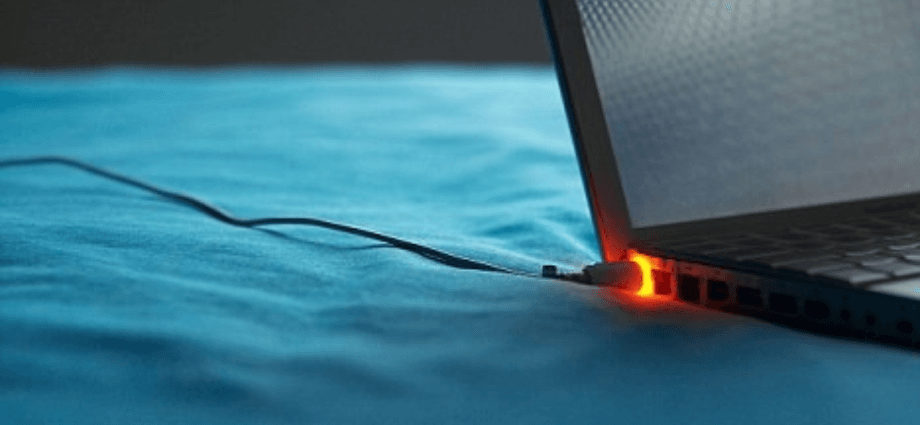
Overcharging your laptop can harm the battery and reduce its lifespan. It’s essential to unplug your laptop once it reaches 100% charge. Keeping it plugged in continuously can lead to overheating and battery degradation.
- Unplug your laptop once it reaches 100% charge.
- Avoid keeping it plugged in continuously.
- Use power strips with timers to regulate charging times.
By avoiding overcharging, you help maintain the health and efficiency of your battery. Over time, this simple habit can make a significant difference in the battery’s longevity.
Partial Charging
Charging your battery to 80% instead of 100% can significantly extend its life. This practice reduces the stress on the battery, leading to a longer lifespan.
- Charge your laptop when it drops to around 20%.
- Disconnect the charger once it reaches 80%.
- Consider using battery management software to monitor and set charging limits.
Partial charging helps reduce stress on the battery, leading to a longer lifespan. This habit is particularly useful for those who use their laptops for extended periods.
Use Original Chargers
Using the original Dell charger is essential for proper charging and battery health. Third-party chargers may not provide the correct voltage and current, which can damage the battery. Always use the charger that came with your laptop, and if you need a replacement, buy an official Dell charger. Avoid using cheap, generic chargers as they can harm the battery and void your warranty.
Power Management Settings

Adjusting power management settings can help conserve battery life and improve efficiency. Proper power management settings are key to extending your laptop’s battery life.
Adjusting Brightness
Reducing screen brightness can save a significant amount of battery power. Lower the brightness to a comfortable level and use the auto-brightness feature if available. Adjust the brightness settings in your operating system’s power options to find the right balance between visibility and battery conservation.
Battery Saver Mode
Using the built-in battery saver mode helps extend battery life by limiting background processes and reducing performance. Enable battery saver mode when your battery is low to conserve power. Customize settings to balance performance and battery life, and use battery saver mode during long periods of unplugged use.
Battery saver mode helps you get the most out of your battery when you need it most, making it an essential feature for extending battery life.
Sleep and Hibernate Modes
Utilizing sleep and hibernate modes conserves battery when the laptop is not in use. Set your laptop to enter sleep mode after a period of inactivity, and use hibernate mode for longer periods of non-use. Adjust these settings in the power options menu to optimize battery conservation without shutting down your laptop completely.
Hardware Maintenance
Keeping your laptop’s hardware in good condition is essential for prolonging battery life. Regular hardware maintenance can prevent overheating and ensure efficient battery usage.
Keep Laptop Cool
Preventing overheating is crucial for maintaining battery health and performance. Use a cooling pad to keep the laptop cool, and place your laptop on hard, flat surfaces to improve airflow. Avoid using your laptop on soft surfaces like beds or couches, as they can block vents and cause overheating.
Overheating can degrade the battery and other components, so keeping it cool is essential. Regular maintenance and proper usage habits can help prevent overheating and prolong battery life.
Cleaning the Vents
Clean vents ensure proper airflow and prevent overheating, which can harm the battery. Use compressed air to clean the vents regularly, ensuring they are free from dust and debris. Keeping the laptop in a clean, dust-free environment can also help maintain proper airflow and temperature.
Checking the Battery Health
Monitoring battery health helps you understand its condition and take preventive measures. Use built-in tools to check battery health and look for signs of wear and tear, such as reduced battery life or swelling. Replace the battery if necessary to maintain performance.
Keeping an eye on battery health allows you to address issues before they become serious, ensuring your laptop remains efficient and reliable.
Usage Patterns
Adopting good usage habits can significantly extend the life of your laptop’s battery. Proper usage patterns are essential for conserving battery life and maintaining performance.
Limit Background Processes
Closing unnecessary programs and background processes can save battery power. Open Task Manager to view running processes and close programs that are not in use. Disable startup programs that are not essential to limit background activity and conserve battery power.
Limiting background processes ensures that your laptop runs efficiently and conserves battery power, making it an essential habit for prolonging battery life.
Avoid Intensive Tasks
Reducing the use of high-performance applications can conserve battery life. Limit gaming, video editing, and other intensive tasks when running on battery. Use power-saving settings in high-performance applications and close unnecessary applications to reduce load.
Avoiding intensive tasks helps prevent rapid battery drain and extends usage time, making it an important practice for maintaining battery health.
Regular Shutdowns
Regularly shutting down your laptop prevents battery drain and improves overall performance. Shut down your laptop when not in use for extended periods, and avoid leaving it in sleep mode for long periods. Restart your laptop occasionally to refresh the system and ensure optimal performance.
Regular shutdowns help preserve battery life and maintain optimal performance, making them an essential part of good usage habits.
Conclusion
Proper maintenance and usage habits are key to prolonging the battery life of your Dell laptop. By following these tips, you can ensure your laptop’s battery remains healthy and efficient for years to come.
Share this content:
