Creating a Secure Home Network: Step-by-Step Instructions
In the digital age, securing your home network is essential to protect personal data, privacy, and online activities. Whether it’s for work, entertainment, or daily tasks, ensuring that your devices are connected to a secure home network is crucial. Unsecured networks can expose your personal information, allowing cybercriminals to intercept data, launch attacks, or steal sensitive details. This guide provides step-by-step instructions to help you secure your home network, offering practical tips and easy-to-follow steps.
Understanding the Basics of Home Network Security
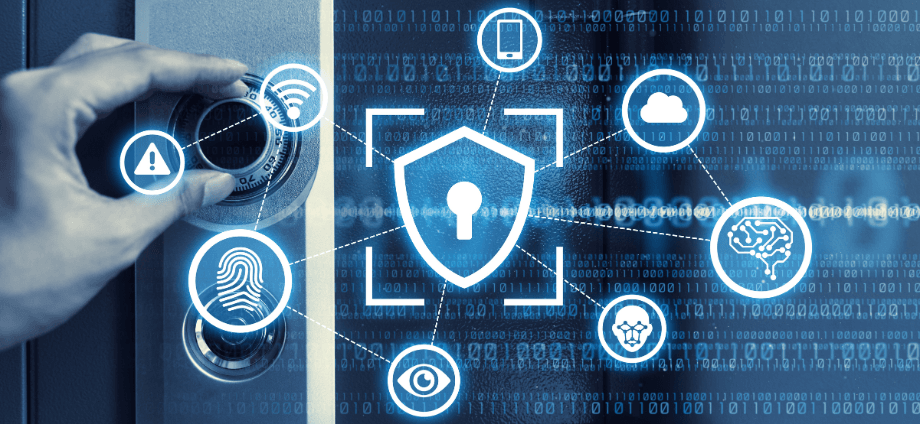
Before diving into the setup, it’s essential to understand the fundamental aspects of home network security.
What is a Home Network?
A home network connects multiple devices, such as computers, smartphones, smart TVs, and IoT (Internet of Things) devices, to the internet via a router. The router typically acts as the hub for all these devices, providing a Wi-Fi connection and allowing devices to communicate with each other. However, this makes the network vulnerable to threats if not properly secured.
Why Securing Your Network is Important
An unsecured network can be easily accessed by unauthorized individuals, exposing your data to cybercriminals. Risks include identity theft, data breaches, malware infections, and hacking of personal devices. Securing your network protects your privacy and prevents malicious activity.
Key Terms to Know
- Encryption: Secures your network by making the data unreadable to unauthorized users.
- Firewall: A barrier that blocks unauthorized access to your network.
- VPN (Virtual Private Network): Encrypts your internet traffic, enhancing security and privacy.
Step 1: Secure Your Router
The router is the core of your home network, so it’s crucial to configure it securely.
Changing Default Router Settings
Most routers come with default settings that are easy for hackers to guess, including the default admin username and password. To protect your network:
- Access your router settings by typing the router’s IP address into a browser (e.g., 192.168.1.1).
- Change the default admin credentials to a strong and unique password.
- Avoid using common phrases or easily guessable passwords.
Enabling WPA3 Encryption
Wi-Fi encryption is essential for securing wireless communication. WPA3 is the latest and most secure encryption standard. Enable WPA3 on your router to ensure that your network is protected against unauthorized access.
- Navigate to the wireless settings in your router’s admin panel.
- Set the security mode to WPA3 or WPA2 if WPA3 is not available.
Disable WPS (Wi-Fi Protected Setup)
WPS is a feature that simplifies device pairing with your network. However, it has security vulnerabilities. Disabling WPS reduces the risk of unauthorized access.
- Disable WPS in the router’s settings for enhanced security.
Step 2: Set Up a Strong Wi-Fi Password
A strong Wi-Fi password prevents unauthorized devices from connecting to your network.
Choosing a Strong Password
A secure password should be long, complex, and unique. Avoid simple combinations like “123456” or “password.” A good password typically contains:
- A mix of uppercase and lowercase letters, numbers, and special characters.
- At least 12 characters in length.
Password Management Tools
If you struggle to remember complex passwords, use a password manager to securely store and manage them. Password managers can generate strong, random passwords for each device and website.
Changing Your Wi-Fi Password Regularly
Regularly updating your Wi-Fi password adds an additional layer of protection. Aim to change it every few months or if you suspect any unauthorized access.
Step 3: Limit Network Access
Controlling who can access your network is key to maintaining security.
MAC Address Filtering
MAC address filtering allows only specific devices to connect to your network by recognizing their unique MAC address. By enabling this feature, you can ensure that only trusted devices can access your Wi-Fi.
- Enable MAC address filtering in your router settings and add the MAC addresses of your devices.
Setting Up a Guest Network
A guest network is a separate network for visitors, preventing them from accessing your main devices. Set up a guest Wi-Fi network to isolate traffic, ensuring that your personal devices remain secure.
- Enable the guest network option in your router’s settings.
- Set a separate password for guest access.
Limiting Device Access by IP
To further control which devices can connect, configure IP address filtering. This allows you to whitelist only specific IP addresses.
- Assign static IP addresses to your trusted devices.
- Use the router settings to block all other IP addresses from connecting.
Step 4: Keep Software Up-to-Date
Regular updates are critical to securing your network and devices.
Firmware Updates for Your Router
Router manufacturers regularly release firmware updates to address security vulnerabilities. Make sure to check for updates frequently and install them as soon as they’re available.
- Log in to your router’s admin panel and check for firmware updates.
- Enable automatic updates if your router supports it.
Software Updates for Connected Devices
Ensure that all devices connected to your network, such as smartphones, computers, and smart TVs, have the latest software and security patches installed.
- Set devices to automatically update software to stay protected against new threats.
Step 5: Enhance Security with Additional Tools
There are several additional tools and practices that can further secure your home network.
Use a VPN (Virtual Private Network)
A VPN encrypts your internet traffic, making it harder for hackers to intercept sensitive information. You can install a VPN on your router or individual devices for enhanced privacy.
- Subscribe to a reputable VPN provider.
- Install the VPN on your router for comprehensive coverage across all devices.
Set Up a Firewall
A firewall helps protect your home network by monitoring incoming and outgoing traffic and blocking potentially harmful connections. Most modern routers come with a built-in firewall.
- Enable the router’s firewall in the security settings to prevent unauthorized access.
Enable Parental Controls
If you have children, enable parental controls to monitor and restrict access to inappropriate content. Many routers and smart devices offer this feature.
- Configure parental controls in your router or through a dedicated app.
Step 6: Monitor and Maintain Network Security
Regular monitoring and maintenance are necessary to ensure your network remains secure over time.
Monitor Connected Devices
Regularly check which devices are connected to your network. If you notice any unfamiliar devices, investigate and remove them if necessary.
- Log into your router’s settings to view connected devices.
- Disconnect any unauthorized devices promptly.
Set Up Alerts for Suspicious Activity
Many routers allow you to set up alerts for unusual activity. Enable these notifications to stay informed about potential security threats.
- Configure alerts in your router settings to be notified of any suspicious activity.
Regularly Test Your Network Security
Use tools to scan your network for vulnerabilities or run penetration tests to assess security.
- Perform regular security checks to identify weaknesses or potential exploits.
Conclusion
Creating a secure home network is crucial in protecting your devices and personal information from cyber threats. By following these step-by-step instructions—securing your router, setting strong passwords, limiting access, and using additional security tools—you can ensure that your network is well-protected. Regular maintenance, such as firmware updates and device monitoring, is also essential to maintain long-term security. With these practices in place, you can enjoy a safer online experience for you and your family.
Share this content:
