Customizing Your Smartphone’s Home Screen: Tips and Tricks
Your smartphone’s home screen is more than just a space for app icons. It’s your personal space that you see and use every time you unlock your device. Customizing it can make your smartphone experience not only more visually appealing but also more efficient. Whether you’re looking to organize your apps, personalize the appearance, or add quick access to important features, customizing your home screen is a great way to tailor your device to your needs. Here’s how you can make the most of it.
Understanding the Basics of Home Screen Customization
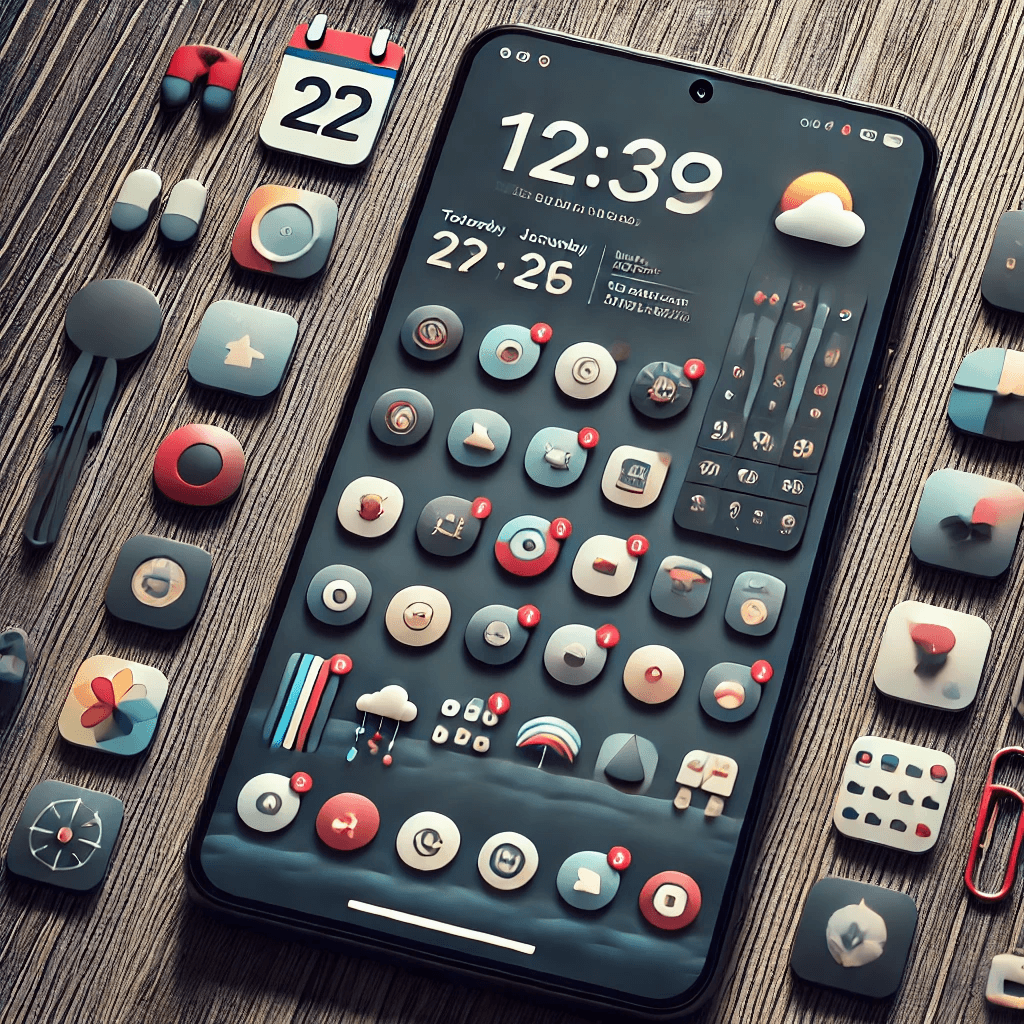
Before diving into customization, it’s essential to understand the basic components of the home screen and why customizing them can enhance your experience.
What Is the Home Screen?
The home screen is the primary interface of your smartphone, where apps, widgets, and other shortcuts are placed. It’s the screen that greets you when you unlock your phone, and it serves as a hub for accessing your favorite features and apps.
Why Customize Your Home Screen?
Customizing your home screen allows you to streamline your phone’s interface for better usability and style. The key benefits include:
- Improved organization: Keep apps, widgets, and tools in a layout that works best for you.
- Increased productivity: Quick access to apps and information you use most.
- Personalization: Reflect your personality and preferences through wallpapers, themes, and layouts.
Key Elements of the Home Screen
The home screen consists of:
- Icons: Represent apps or tools.
- Widgets: Small, interactive elements that provide at-a-glance information.
- Wallpaper: The background image or design that gives your home screen a personal touch.
- Layouts: The arrangement of icons and widgets.
Customizing Home Screen Layout
The layout of your home screen directly impacts how efficiently you can use your smartphone. Let’s look at how you can optimize your layout.
Organizing Apps into Folders
One of the easiest ways to reduce clutter on your home screen is by organizing apps into folders. This helps keep everything organized and makes it easier to find apps when you need them. For example:
- Social Media: Group apps like Instagram, Twitter, and Facebook.
- Productivity: Combine apps like Google Drive, Notes, and Calendar.
- Entertainment: Place Netflix, Spotify, and YouTube together.
Adjusting Icon Sizes
Depending on your device, you can adjust the size of your icons. Larger icons are easier to tap and can be more accessible, especially on larger screens, while smaller icons provide more space for additional apps and widgets.
Using App Drawer vs. Home Screen
Some smartphones have an app drawer, which is an organized list of all apps that can be accessed by swiping up. Keeping apps in the drawer can help reduce clutter, but placing your most-used apps directly on the home screen provides quicker access. It’s up to you whether you want a cleaner home screen or prefer having apps at your fingertips.
Personalizing the Wallpaper and Themes
Your wallpaper and system themes can make a significant difference in your device’s look and feel. Here’s how you can personalize them.
Choosing the Right Wallpaper
The wallpaper is the first thing you see when unlocking your phone, so make it count. Whether you prefer personal photos, nature landscapes, or abstract designs, the right wallpaper sets the tone for your device.
- Personal photos: Use a meaningful image to add a personal touch.
- Minimalist or themed designs: Choose something simple for a clean and focused look.
- Dark or light themes: Switch between dark and light mode to suit your preferences.
Using Live and Dynamic Wallpapers
Live wallpapers add movement and interactivity to your home screen, creating a dynamic look. However, keep in mind that these can drain battery life. Use them if aesthetics are a priority and you’re okay with the potential battery impact.
Changing System Themes
Most devices now feature system-wide themes, including dark and light modes. Switching to dark mode can reduce eye strain, particularly in low light, and can help save battery on OLED screens.
Utilizing Widgets for Quick Access
Widgets are small, interactive elements that display live information from your apps, making them a useful addition to your home screen.
What Are Widgets?
Widgets allow you to access real-time data or actions directly from your home screen. For example, a weather widget shows current conditions, while a calendar widget displays upcoming events.
Adding Useful Widgets
Here are a few helpful widgets to consider:
- Weather widget: Keep track of the weather without opening an app.
- Calendar widget: View upcoming events at a glance.
- News widget: Stay updated with the latest headlines.
Resizing and Moving Widgets
Most widgets are resizable, allowing you to adjust their size based on the amount of information you need. You can also move widgets around to ensure they’re in the most convenient location on your home screen.
Enhancing Functionality with Shortcuts
Shortcuts make it easier to access specific features of apps or perform actions without having to open the app itself.
Creating App Shortcuts
You can create shortcuts for apps or specific actions. For instance, instead of opening your camera app and selecting the photo mode, you can create a shortcut directly to the photo mode for quicker access.
Gesture Controls and Action Shortcuts
Many smartphones support gesture controls, letting you open apps or settings by swiping, tapping, or holding a button. This speeds up navigation and makes it easier to use your phone one-handed.
Automating Tasks with Shortcuts
Android and iOS offer automation features to create shortcuts for recurring tasks. For example, you can set up a shortcut that automatically sends a text message at a specific time or sets your phone to silent when you arrive at work.
Exploring Third-Party Customization Apps
For more advanced customizations, third-party apps can help you take your home screen to the next level.
Using Custom Launchers (Android)
Custom launchers like Nova Launcher, Action Launcher, or Microsoft Launcher offer more control over your home screen’s layout, appearance, and functionality. These launchers allow you to create a truly personalized experience with features like custom icons, gesture controls, and extended app organization.
Customizing Icons with Icon Packs
Icon packs allow you to change the appearance of your app icons. You can use icon packs that fit a particular theme, such as minimalist designs, vibrant colors, or retro icons, helping to unify the look of your device.
Downloading Widget Apps
For more advanced widgets, you can download widget apps that allow you to add new types of widgets or customize existing ones. These apps can provide additional functionality, such as unique styles or interactive elements.
Maintaining and Updating Your Home Screen
Once you’ve customized your home screen, it’s essential to maintain and refresh it to keep it organized and functional.
Keeping Your Home Screen Organized
As you add new apps and features, your home screen may get cluttered. Periodically review your layout and remove apps or widgets you no longer use. Keep your most-used apps front and center and move less-frequently used apps to folders or the app drawer.
Regularly Refreshing the Home Screen
Changing your wallpaper, rearranging icons, or adding new widgets can keep your home screen looking fresh. Updating your layout periodically helps keep your phone feeling new and adapted to your current needs.
Backing Up Your Home Screen Settings
Some Android and iOS devices allow you to back up your home screen layout, so you don’t have to manually reset everything if you need to restore or switch devices. Take advantage of this feature for easier setup if you ever reset your device or change phones.
Conclusion
Customizing your smartphone’s home screen can significantly enhance both its functionality and aesthetic appeal. By organizing apps, choosing the right wallpaper, adding widgets, and creating shortcuts, you can make your device more efficient and tailored to your needs. Regularly maintaining and refreshing your home screen ensures that it remains organized and useful as your phone evolves. Whether you want to make your phone more visually pleasing or improve usability, these tips will help you create a home screen that works for you.
Share this content:
