How to Manage App Permissions on Your Smartphone
In today’s world, smartphones are central to almost every aspect of our lives. From social interactions to online banking and personal health tracking, smartphones store a wealth of sensitive information. As apps become more powerful and data-driven, they often require access to various features on your phone, such as your camera, location, contacts, and more. While this access can enhance app functionality, it also raises significant privacy concerns. Managing app permissions is an essential practice to ensure your personal data remains protected. This article provides a step-by-step guide on how to manage app permissions on your smartphone, whether you use Android or iOS.
Understanding the Basics of App Permissions
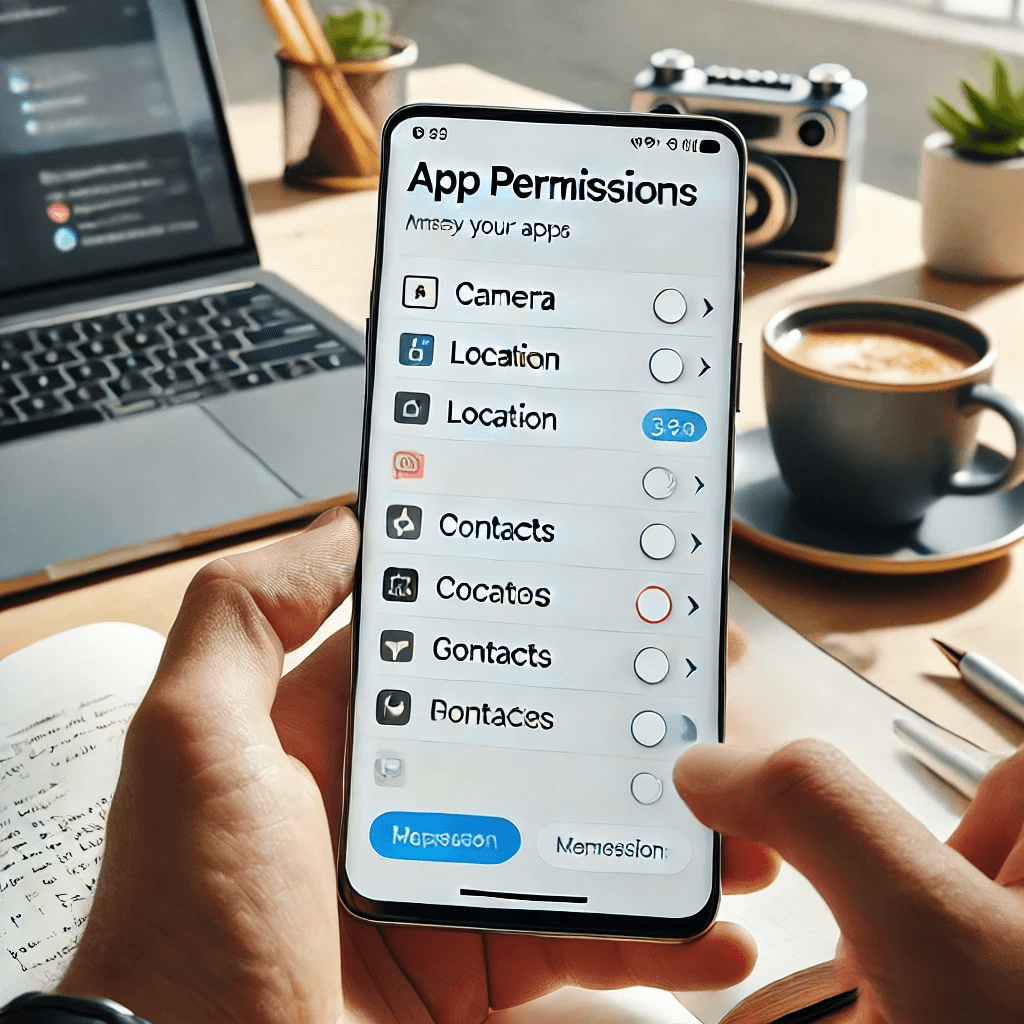
Before diving into the steps to manage app permissions, it’s important to understand what app permissions are and why they matter.
What Are App Permissions?
App permissions are the settings that determine what an app can access on your smartphone. When you install an app, it often requests permissions to access certain features like your camera, microphone, contacts, or location. These permissions enable the app to function properly, but they also grant the app the ability to collect and use your personal data.
Types of Permissions
Common app permissions include:
- Camera: Allows apps to access the phone’s camera for taking photos or videos.
- Location: Provides apps with access to your GPS location for services like maps or weather updates.
- Contacts: Grants access to your contacts for messaging or social apps.
- Microphone: Allows apps to record audio for features like voice commands or voice calls.
Risks of Granting Excessive Permissions
Granting excessive or unnecessary permissions can expose your data to misuse. Apps may access sensitive information without your full understanding, leading to privacy concerns or even security breaches. For instance, an app asking for access to your location when it doesn’t need it could track your movements without your knowledge.
Managing App Permissions on Android Devices
Now that you understand app permissions, let’s look at how to manage them on Android devices.
Accessing App Permissions Settings
To view and manage app permissions on Android, follow these steps:
- Go to Settings > Apps & Notifications > App Permissions.
- Select a permission category (e.g., location, camera) to see which apps have access.
- You can also access individual app permissions by going to Settings > Apps > [App Name] > Permissions.
Modifying Permissions for Individual Apps
You can modify permissions for each app individually. For example, if you don’t want an app to access your camera, follow these steps:
- Navigate to the Permissions section of the specific app.
- Toggle off the permission (e.g., Camera, Location).
Granting or Denying Permissions During Installation
When you install a new app, you’ll often be prompted to grant permissions. You can review these requests and choose to deny permissions that seem unnecessary for the app’s core functionality. Always review the requested permissions carefully before agreeing.
Managing App Permissions on iOS Devices
Managing app permissions on iOS devices follows a similar process, but with a few differences in the interface.
Accessing App Permissions Settings on iOS
To view and modify app permissions on an iPhone or iPad:
- Open Settings > Privacy.
- Select the type of permission (e.g., Camera, Location Services).
- Tap on each app to view or adjust its permissions.
Adjusting Permissions for Apps on iOS
For iOS, you can revoke or grant permissions for specific apps by tapping on the app name under each permission type. For instance, you can disable access to location services for apps that don’t require it.
App Privacy Labels on the App Store
Apple has introduced privacy labels for apps available on the App Store. These labels show you exactly what data the app collects before you download it. You can use these labels to make more informed decisions about which apps to trust with your personal data.
Best Practices for Managing App Permissions
Once you understand how to manage permissions on both Android and iOS, here are some best practices to ensure your smartphone remains secure:
Review Permissions Regularly
It’s important to periodically check and update the permissions granted to your apps. Over time, you might find that some apps no longer need access to certain features. Regularly reviewing and revoking unnecessary permissions reduces the risk of data misuse.
- Go through your app permissions every few months.
- Revoke access to apps you no longer use.
Limit Permissions to What’s Necessary
Always choose the option to only grant permissions that are essential for an app’s functionality. For example, a photo editor app might not need access to your contacts, so you can deny that permission.
- Grant permissions on a case-by-case basis.
- Avoid apps that request unnecessary access to sensitive data.
Use Permission Management Apps
Some third-party apps help manage and track app permissions across your device. These apps can send you alerts when an app accesses sensitive information, giving you more control over your privacy.
- Use apps that help you audit and manage permissions across multiple apps.
- Set alerts for any suspicious app behavior.
Troubleshooting App Permission Issues
Sometimes, managing permissions can lead to apps not working as expected. Here are some troubleshooting tips.
Apps Not Working After Denying Permissions
If you deny a permission for an app and it stops working, check the permission settings again. You may need to grant access to specific features, like the camera or microphone, for the app to function properly.
- Review the app’s functionality and see which permissions it requires.
- Enable permissions as needed to restore app functionality.
Permission Conflicts Between Apps
At times, multiple apps may request the same permissions, causing conflicts. For example, you may need to decide which app should have access to your location at a given time. Make sure you are clear about which apps truly need the permission.
- Manage permissions by reviewing the app’s purpose and its requirement for specific data.
- Use app-specific permissions instead of granting universal access.
Conclusion
Managing app permissions is an essential part of securing your smartphone and protecting your personal data. By following the steps outlined for both Android and iOS devices, you can take control over what information apps can access. Regularly reviewing and managing permissions helps reduce the risks associated with unnecessary data collection and ensures that your smartphone remains secure. Take the time to set and update app permissions carefully, and you’ll be able to use your device with confidence knowing your privacy is protected.
Share this content:
