How to Manage Multiple Email Accounts Efficiently
Managing multiple email accounts can be overwhelming, but with the right strategies, you can streamline your inboxes and make your digital life more efficient. This guide provides practical tips to help you stay organized.
Start with Email Consolidation
Consolidating your email accounts into one platform or system can make managing them much easier. By reducing the number of places you need to check, you save time and effort.
Use an Email Aggregator
Email aggregators like Gmail, Outlook, or Apple Mail allow you to connect multiple accounts in one interface. This setup ensures all your emails are in one place, saving time and making it easier to stay organized.
Why it helps:
- Unified notifications streamline your workflow.
- Consistent formatting makes navigation simpler.
- You can respond to all emails without logging in and out.
Forward Emails to a Primary Account
If you prefer sticking to one inbox, email forwarding is a helpful solution. It lets you automatically send messages from secondary accounts to your main inbox. Use filters to organize forwarded emails by sender or subject. This approach reduces the hassle of switching accounts while keeping all your emails centralized in one place.
Organize Your Inboxes
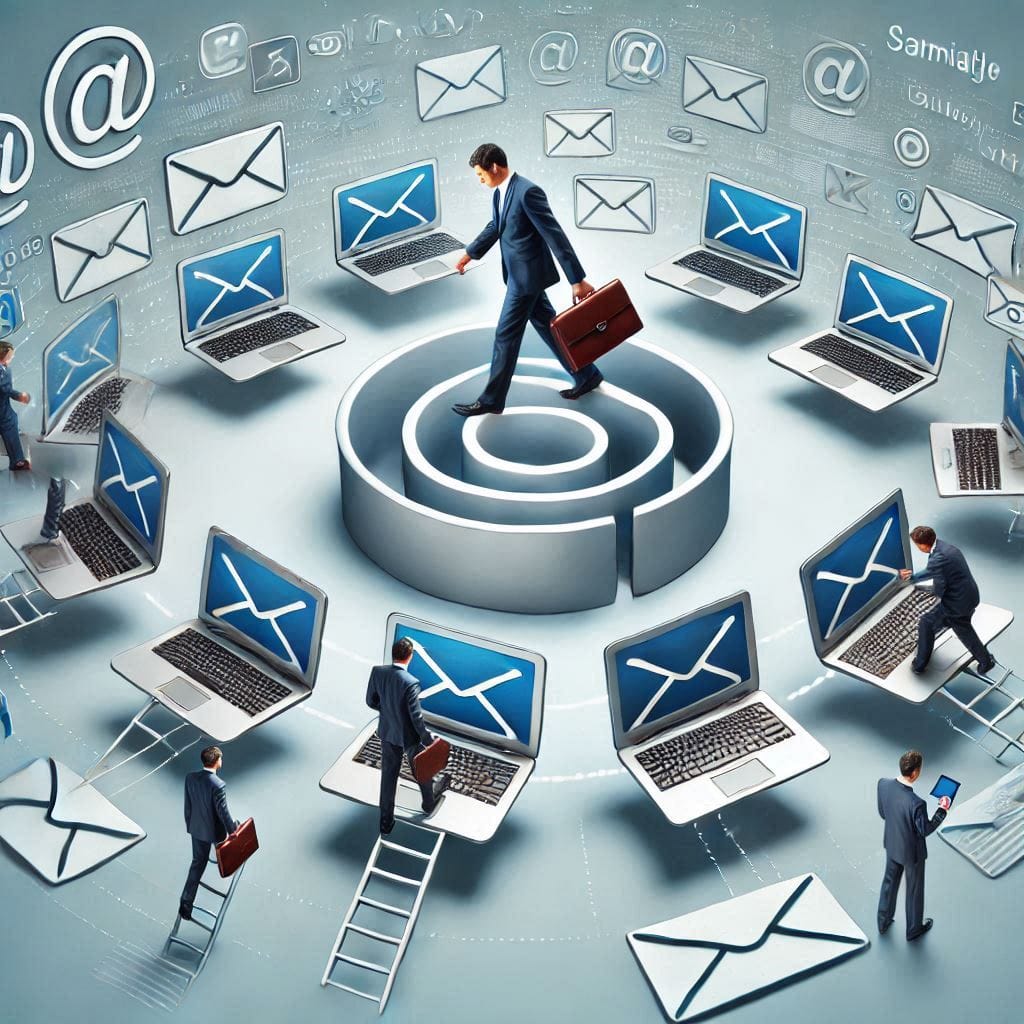
A well-organized inbox is crucial for managing multiple email accounts effectively. Folders, labels, and rules can help keep everything neat and easy to navigate.
Use Folders and Labels
Organize emails by creating folders or labels based on accounts, clients, or projects. This helps you quickly find what you need without scrolling through endless messages. For example:
- Work: Store all job-related emails.
- Personal: Keep private messages separate.
- Newsletters: Prevent clutter by redirecting subscriptions here.
Use color-coded labels for better visual categorization and automate folder placement using email rules.
Set Up Filters and Rules
Filters automatically sort incoming emails based on sender, subject, or keywords. They help declutter your inbox and ensure essential emails aren’t lost. For instance, newsletters can go to a dedicated folder, while work emails can be tagged as priority.
How to create a filter:
- Open email settings.
- Select “Filters and Rules.”
- Define conditions (e.g., sender or keyword).
- Choose an action like “Move to Folder.”
Set a Routine for Checking Emails
Creating a schedule for checking emails prevents the constant distraction of notifications. A routine helps you stay focused and productive.
Designate Specific Times
Instead of checking emails all day, set fixed times to review your inbox. For instance, check emails in the morning, after lunch, and before ending your workday. This reduces stress and helps maintain work-life balance.
Tips for setting times:
- Avoid opening emails during breaks or personal time.
- Use a timer to limit your email sessions.
Prioritize Important Messages
Not all emails require immediate attention. Use tools like “priority inbox” or starred messages to focus on urgent ones. Archive or delete non-essential emails to declutter your inbox.
Tips for prioritization:
- Highlight emails from specific senders (e.g., boss or clients).
- Use color-coded tags to mark urgency levels.
Leverage Technology for Efficiency
Email management tools and features can significantly improve your efficiency. From automation to templates, technology simplifies your workflow.
Try Email Management Apps
Dedicated apps provide extra tools to handle multiple accounts. Popular options like Spark, Clean Email, or Unroll.me can:
- Organize: Use smart folders for automatic categorization.
- Clean: Bulk delete unnecessary messages.
- Unsubscribe: Remove yourself from unwanted mailing lists.
These apps save time and reduce inbox clutter, letting you focus on essential tasks without distractions.
Use Templates for Common Responses
If you frequently send similar replies, pre-written templates save time and effort. Templates can be used for meeting confirmations, FAQs, or customer inquiries.
How to use templates:
- Write a generic response.
- Save it as a template in your email settings.
- Quickly apply the template when replying.
Examples:
- “Thank you for reaching out. I’ll get back to you soon.”
- “Please find the requested document attached.”
Secure and Protect Your Email Accounts
Security is essential when managing multiple accounts. Taking steps to protect your emails ensures your data and privacy remain safe.
Use Strong Passwords and Two-Factor Authentication
Ensure each email account has a unique password that includes numbers, symbols, and uppercase letters. Enable two-factor authentication (2FA) for an extra layer of security.
Steps for better security:
- Avoid reusing passwords across accounts.
- Use a password manager to store credentials securely.
- Set up 2FA with SMS codes or authentication apps.
Changing your passwords regularly also minimizes the risk of breaches.
Monitor for Suspicious Activity
Regularly review your account activity for unusual logins or unauthorized changes. Phishing emails are common; avoid clicking on suspicious links or downloading attachments.
Warning signs of phishing:
- Unfamiliar senders.
- Urgent requests for personal information.
- Poor grammar or spelling in messages.
Report suspicious emails and use security settings to block unwanted senders.
Conclusion
Managing multiple email accounts doesn’t have to be stressful. By consolidating accounts, organizing inboxes, setting a routine, leveraging technology, and focusing on security, you can handle your emails efficiently. Implementing these tips step by step will help you save time, reduce stress, and keep your digital communications in order.
Share this content:
