How to Secure Your Online Accounts with Two-Factor Authentication
In today’s digital world, securing online accounts is critical. With hackers constantly finding new ways to compromise passwords, relying on just one layer of security may not be enough. Two-factor authentication (2FA) adds an extra layer of protection, ensuring your accounts remain secure even if your password is compromised. This guide will explain what 2FA is, why it’s essential, and how to set it up on your accounts.
What is Two-Factor Authentication (2FA)?
Two-factor authentication (2FA) is a security process that requires two forms of verification before granting access to an online account. It adds an extra layer of protection by requiring something you know (your password) and something you have (a verification code or device).
Definition of Two-Factor Authentication
2FA is designed to make it harder for unauthorized users to gain access to your accounts. It requires:
- Something you know: Your password.
- Something you have: A code sent to your phone, generated by an app, or provided by a hardware token.
How 2FA Works
Once you enter your password, you’ll be asked to provide a second form of verification. This could be a code sent via SMS, generated by an authenticator app, or tapped on a hardware token. This process ensures that even if someone steals your password, they still need the second factor to access your account.
Types of Two-Factor Authentication
There are several types of 2FA methods:
- SMS-based authentication: A code is sent to your phone via text message.
- Authenticator apps: Apps like Google Authenticator or Authy generate time-sensitive codes.
- Hardware tokens: Devices like YubiKey generate or require tapping to authenticate.
Why Two-Factor Authentication is Essential
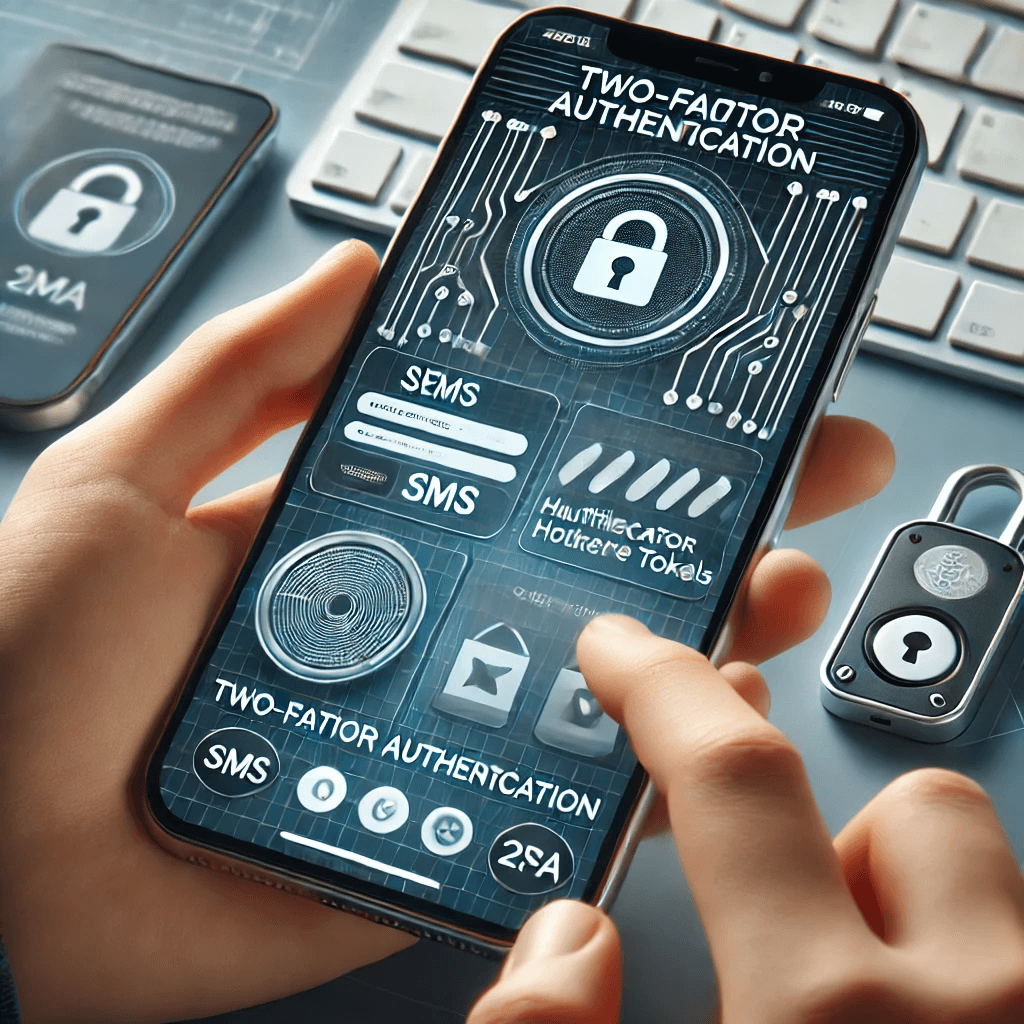
2FA is an effective way to protect your online accounts from unauthorized access, especially in an age where data breaches and cyberattacks are increasingly common.
Protection Against Password Breaches
Even with strong passwords, data breaches happen frequently. 2FA adds a second layer of security, ensuring that attackers cannot access your account even if they have your password.
Safeguarding Sensitive Information
Online accounts often store sensitive information, such as financial data, personal messages, or social media content. 2FA helps prevent unauthorized access to protect this data.
Compliance and Industry Standards
Many industries require 2FA for compliance with data protection laws. For example, financial institutions and healthcare organizations must use 2FA to meet regulations like GDPR and HIPAA.
How to Set Up Two-Factor Authentication
Setting up 2FA on your accounts is straightforward. Here’s a guide on how to enable it on popular platforms.
Enabling 2FA on Popular Platforms
- Sign in to your account.
- Go to security settings: Find the option to enable two-factor authentication.
- Choose a verification method: You’ll be asked to choose between SMS, an authenticator app, or hardware token.
- Verify your identity: You may need to enter a code sent to your phone or email.
Using Authenticator Apps
Authenticator apps like Google Authenticator or Authy provide an added layer of security by generating time-sensitive codes.
- Install the app: Download Google Authenticator or Authy from your device’s app store.
- Link it to your account: When setting up 2FA, you’ll scan a QR code to link your account to the app.
- Enter the generated code: After linking, the app will generate a new code every 30 seconds for authentication.
Setting Up SMS or Email-Based 2FA
For SMS or email-based 2FA, follow these steps:
- Select SMS during the 2FA setup process.
- Enter your phone number or email address.
- Verify the number: A code will be sent, which you must enter to confirm the setup.
Best Practices for Two-Factor Authentication
While 2FA is powerful, using it alongside other security practices ensures maximum protection.
Use Unique and Strong Passwords
A strong password is essential for account security, even with 2FA enabled. Combine uppercase and lowercase letters, numbers, and special characters to create a secure password.
- Avoid reusing passwords: Never use the same password across multiple accounts.
- Consider using a password manager: This tool can generate and store complex passwords.
Backup and Recovery Options
It’s crucial to have backup methods in case you lose access to your 2FA device. Most services allow you to generate backup codes or add alternative recovery options.
- Backup codes: Write them down and store them in a secure place.
- Set up a backup phone number or email: Ensure you have access to an alternate method if you lose your primary device.
Keep Your Devices Secure
Since 2FA relies on devices like your phone, make sure these devices are secure.
- Use phone locks: Use a password, PIN, or biometric authentication to secure your phone.
- Keep software updated: Regularly update your phone and apps to protect against vulnerabilities.
Common Issues and Troubleshooting with 2FA
While 2FA is effective, users may encounter some issues. Here are solutions to common problems.
Losing Access to Your 2FA Device
If you lose your 2FA device (e.g., phone), most platforms offer recovery options:
- Use backup codes: These can be used if you lose access to your phone.
- Contact support: If you can’t recover your account, contact the platform’s support team for help.
Delays in Receiving Codes
SMS or email codes can sometimes be delayed due to network issues. To resolve this:
- Check your network connection: Ensure your phone has a stable signal.
- Request a new code: If the original code doesn’t arrive, ask for a new one.
Problems with Authenticator Apps
If the authenticator app isn’t working properly:
- Resync the app: Ensure the time on your device is set correctly, as incorrect time can cause the code to fail.
- Reinstall the app: If necessary, uninstall and reinstall the authenticator app to resolve any syncing issues.
Alternatives and Enhancements to Two-Factor Authentication
While 2FA is robust, additional methods can enhance security even further.
Biometric Authentication
Biometric authentication, like fingerprint scanning or facial recognition, can be used as an alternative or in addition to 2FA.
- Fingerprint or Face ID: Use biometrics to unlock your device or authorize transactions, providing quick and secure access.
Multi-Factor Authentication (MFA)
MFA goes beyond 2FA by requiring more than two forms of identification, such as a password, an authenticator app, and a biometric scan. This offers even stronger security for sensitive accounts.
Using Hardware Security Keys
Hardware security keys, like YubiKey, provide the most secure form of 2FA. These physical devices require you to insert them into your device or tap them to authenticate.
Conclusion
Two-factor authentication is a simple yet powerful way to secure your online accounts. By enabling 2FA, you significantly reduce the risk of unauthorized access, even if your password is compromised. Following the steps outlined in this guide to set up 2FA, coupled with best practices like strong passwords and backup recovery options, will help protect your sensitive information. Don’t wait—start using 2FA on all your important accounts today to enhance your online security.
Share this content:
