How to Set Up Emergency Contacts on Your Devices
In our increasingly digital world, smartphones and other connected devices play a significant role in keeping us safe. One of the most important features on these devices is the ability to set up emergency contacts. Whether it’s in case of an accident or an unforeseen event, emergency contacts can help ensure you get the right assistance quickly. This guide will show you how to set up emergency contacts across various devices to enhance your safety and preparedness.
Understanding the Importance of Emergency Contacts
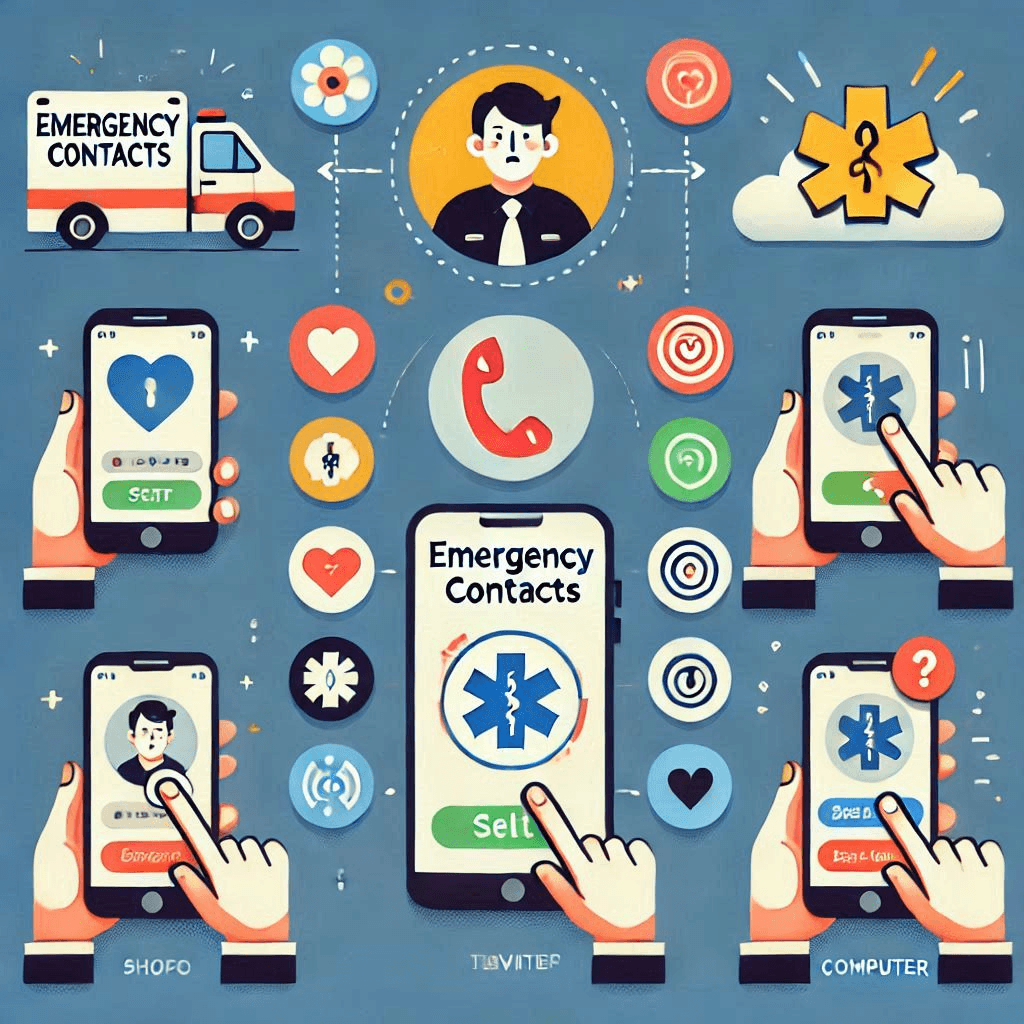
Emergency contacts are crucial for ensuring that help is only a call away, especially when you’re unable to respond due to injury, illness, or an accident. Having a trusted person ready to act in such situations can make a big difference, and setting these contacts up on your devices ensures that they are easily accessible when needed.
Why You Need Emergency Contacts
Emergency contacts allow first responders or healthcare professionals to quickly access critical information about you, such as medical conditions or allergies. They also help family members or friends reach you in case of an emergency, even if you are unable to answer your phone.
How Emergency Contact Information Works
Emergency contact details are stored on your device and can be accessed by first responders even when your phone is locked. This functionality is especially helpful during accidents where you might be unconscious or unable to communicate. Many smartphones and wearables allow emergency contact information to be displayed on the lock screen for immediate access.
Situations Where Emergency Contacts are Crucial
Emergencies can happen unexpectedly, whether during a medical crisis, an accident, or any situation where you need immediate assistance. Having emergency contacts pre-set on your device ensures that these contacts can be reached quickly by those who need to help, potentially saving valuable time in critical moments.
How to Set Up Emergency Contacts on Smartphones
Both iPhones and Android phones provide built-in options to set up emergency contacts, making it easy for you to have them available when you need them most. Here’s how to do it:
Setting Emergency Contacts on iPhones (iOS)
On iPhones, you can set up emergency contacts through the Health app. Here’s how:
- Open the Health app and tap on your profile picture.
- Scroll down to Medical ID and tap on it.
- Tap Edit and enter emergency contact details, including the person’s name, phone number, and relationship to you.
- Enable the option to show this information on the Lock Screen, which allows first responders to view the data even if your phone is locked.
This setup ensures that emergency contacts are easily accessible, and medical professionals can find essential information about you right from the lock screen.
Setting Emergency Contacts on Android Phones
Android phones also offer an emergency contact feature through their “Emergency Information” settings. To set it up:
- Open the Contacts app.
- Tap on the three dots (menu) and select Emergency information.
- Add your emergency contacts and any relevant medical information, such as allergies or medical conditions.
- Ensure that the Emergency Information feature is visible on the lock screen by adjusting your settings.
This setup makes sure that, in the event of an emergency, responders can access vital contact details without needing to unlock the phone.
Customizing Emergency Contact Visibility
Both iPhones and Android devices allow you to control how emergency contact details are displayed. You can ensure that these contacts and any medical information are visible even when your phone is locked, making it easy for first responders to quickly get the help you need.
Emergency Contacts in Other Devices
In addition to smartphones, other devices like wearables and smart home systems can play a crucial role in ensuring your safety by storing emergency contact information.
Setting Up Emergency Contacts on Wearables
Smartwatches like the Apple Watch and Samsung Galaxy Watch allow you to store emergency contacts directly on the device. These devices can even send an SOS alert to your contacts if you’re in danger.
- On the Apple Watch, go to the Health app on your paired iPhone, tap on Medical ID, and add your emergency contacts.
- On Samsung Galaxy Watch, use the Samsung Health app to input emergency contact information.
These smartwatches can also notify emergency contacts and first responders in case of a fall or health-related incident, making them invaluable tools for safety.
Adding Emergency Contacts to Smart Home Devices
Smart home devices, such as Google Home or Amazon Alexa, can help in emergencies too. You can set up voice commands to contact emergency services or notify your emergency contacts.
- For Google Home, enable the “Emergency Assistance” feature and link your phone’s emergency contacts.
- Amazon Alexa can be set to call emergency contacts through specific skills or third-party integrations.
These smart devices can be a great backup option if you are unable to use your phone.
Using Emergency Features in Car Systems
In-car systems like Apple CarPlay and Android Auto also offer emergency contact capabilities. If you’re in an accident, your car system can call emergency services or alert family members.
By linking your phone’s emergency contacts with these systems, you ensure that help is only a touch or voice command away, even when driving.
Best Practices for Emergency Contact Setup
Setting up emergency contacts is important, but maintaining and managing them effectively ensures they remain useful during a real emergency.
Ensure Information is Up-to-Date
It’s crucial to keep your emergency contact information current. Update your contacts regularly, especially if there are changes in your life, such as moving to a new location, getting a new phone number, or changing health conditions.
Choose Reliable Contacts
Select individuals who can respond quickly and effectively in emergencies. Make sure these contacts are reachable at all times and are familiar with your medical history and preferences.
Test Your Emergency Contact Setup
After setting up emergency contacts on your device, test the system to ensure it works correctly. Verify that the contact details are accessible on the lock screen and that the emergency alert systems work as expected.
Security and Privacy Considerations
While having emergency contact information easily accessible can save your life, it’s essential to protect this information to prevent misuse.
Protecting Your Emergency Contact Information
Ensure your emergency contact details are only accessible to the right people. Use strong passwords and enable two-factor authentication (2FA) for your devices to prevent unauthorized access.
Privacy Settings for Emergency Contact Info
Adjust your privacy settings to control who can view your emergency contacts. While first responders should have access, you may not want other users or apps to see this sensitive information.
Ensuring Confidentiality in Shared Devices
If you share your device with others, consider limiting access to emergency information to avoid unauthorized use. You can lock your emergency information settings with a PIN or password if necessary.
Conclusion
Setting up emergency contacts on your devices is an essential step in ensuring your safety and preparedness for unexpected situations. Whether it’s on your smartphone, wearable, smart home device, or car system, having your contacts readily accessible can save time in a crisis. By following the steps outlined in this article and regularly updating your information, you can rest assured that help is just a few taps or voice commands away when needed most.
Share this content:
