Managing Battery Health on Laptops and Smartphones
In our digital age, laptops and smartphones have become integral to our daily lives. These devices provide us with convenience, entertainment, and productivity, but they rely heavily on batteries. As a result, managing battery health is crucial to ensuring your devices continue to perform well over time. Poor battery health can lead to reduced performance, shorter battery life, and eventually the need for costly replacements. This guide will provide you with practical tips to help you maintain optimal battery health on your devices, extending their longevity and ensuring their reliability.
Understanding Battery Health
Before diving into the management tips, it’s essential to understand what battery health is and why it matters.
What is Battery Health?
Battery health refers to the condition of your device’s battery, specifically its capacity to hold and deliver a charge. As batteries age, they lose their ability to retain a charge, leading to reduced performance. Understanding battery health helps you assess the performance of your device and decide when to make adjustments or replace the battery.
Factors Affecting Battery Health
Several factors contribute to battery wear, including:
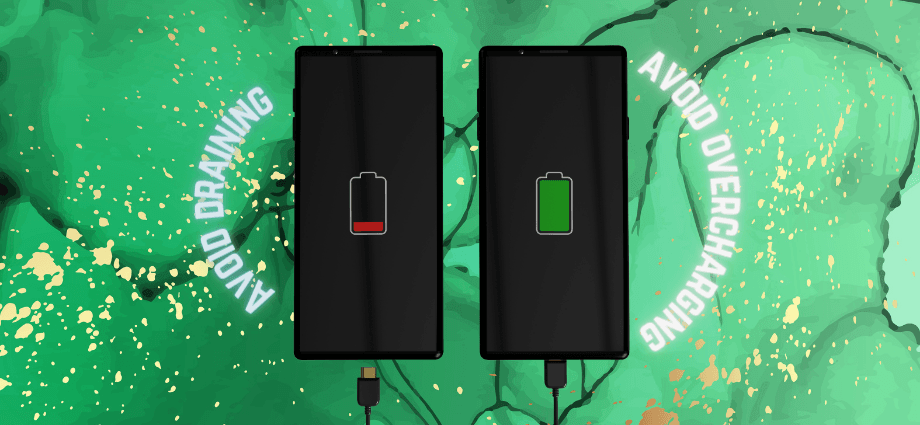
- Charging habits: Regularly charging a battery to 100% or letting it fall below 20% can lead to faster degradation.
- Heat: High temperatures can damage the battery, reducing its overall lifespan.
- Usage patterns: Frequent high-demand tasks (like gaming or streaming) can strain the battery more than light use.
Why Battery Health Matters
Maintaining good battery health is vital for both performance and convenience. Poor battery health results in:
- Shorter battery life: You might find yourself charging your device more frequently.
- Reduced performance: Degraded batteries may cause your device to slow down.
- Increased risk of failure: A damaged battery can lead to shutdowns or leakage.
Taking care of your battery can significantly extend the life of your devices and reduce the likelihood of expensive repairs or replacements.
Tips for Maintaining Battery Health on Laptops
Laptops often have larger batteries, but their health is just as important for efficient use. Here are some practical tips for managing battery health on your laptop.
Avoid Full Discharges
Lithium-ion batteries perform best when kept between 20-80% charge. Avoid discharging below 20%, as doing so can lead to faster degradation.
Use Battery-Saving Modes
Most modern laptops come with battery-saving features. These modes adjust settings such as screen brightness, background applications, and processor usage to minimize power consumption. Activating power-saving modes, especially when working off the charger, can extend battery life.
Keep Your Laptop Cool
Heat is one of the most significant contributors to battery wear. Always use your laptop on hard, flat surfaces to allow proper ventilation. Consider using a cooling pad to prevent overheating.
Managing Battery Health on Smartphones
Smartphones are often charged multiple times throughout the day, making battery health management crucial for maximizing their performance.
Charge Smartly
Charging to 100% constantly, especially overnight, can put unnecessary stress on the battery. Instead, charge when the battery level drops to around 20-30%, and unplug it when it hits around 80-90% for optimal battery health.
Avoid Extreme Temperatures
Smartphone batteries are sensitive to temperature extremes. Avoid leaving your phone in hot places like cars, and try to store it in cooler environments to preserve battery health.
Monitor Battery Usage
Both iOS and Android devices have built-in tools that allow you to monitor battery health. For instance, iPhones offer a Battery Health feature that shows your maximum battery capacity. Android devices provide a similar feature under Battery Settings, where you can track how apps impact battery life.
Tools and Features to Help Maintain Battery Health
Both laptops and smartphones come with built-in tools and third-party apps designed to help monitor and maintain battery health.
Built-in Battery Health Features
On iPhones, the Battery Health feature shows both the maximum capacity and whether the battery is performing as expected. Windows laptops offer a battery report that can be accessed through the Command Prompt, providing detailed information about the battery’s condition.
Third-Party Apps for Battery Management
Several third-party apps can help manage battery health. For laptops, tools like BatteryCare track charge cycles. For smartphones, apps like AccuBattery on Android help you track charging habits and give recommendations.
Battery Calibration Tools
Occasionally, calibrating your battery ensures accurate battery percentage readings. Fully charge your device to 100%, then let it drain to 0% before recharging. Calibrating helps reset the charging cycle counter.
Charging Habits and Best Practices
Proper charging habits are essential for maintaining battery health and preventing premature wear.
Optimize Charging Schedule
Try to charge your device during periods of low usage, avoiding leaving it plugged in all day. Use adaptive charging settings on modern smartphones and laptops to help preserve battery life.
Use Certified Chargers and Accessories
Using third-party or uncertified chargers can affect battery performance. Always use the charger that comes with your device, or opt for certified replacements that are designed specifically for your device.
Avoid Overcharging and Deep Discharge
Avoid keeping your device plugged in when it’s already fully charged, and refrain from allowing the battery to fall below 10%. These practices can lead to faster degradation.
Recognizing Signs of Poor Battery Health
Knowing when your battery health is declining can save you from inconvenience and costly repairs.
Shorter Battery Life
One of the first signs of declining battery health is shorter battery life. If your device no longer lasts as long on a single charge, it may be time to consider replacing the battery.
Overheating or Swelling
Excessive heat or swelling of the battery are critical signs that something is wrong. Overheating can lead to safety issues, and battery swelling means the battery is damaged and should be replaced.
Slow Charging Times
If your device takes significantly longer to charge or shows no improvement despite being plugged in, it could be an indication of poor battery health.
Conclusion
Managing battery health on laptops and smartphones is essential to ensuring that your devices remain functional and efficient. By adopting smart charging habits, using built-in tools to monitor battery health, and maintaining optimal temperature and usage levels, you can significantly extend the lifespan of your battery. Regularly reviewing your battery’s health and taking proactive steps to maintain it will ensure your devices continue to perform well over time.
Share this content:
