Setting Up Parental Controls on Popular Devices
In the digital age, ensuring that children have a safe and balanced online experience is a top priority for many parents. With the constant presence of smartphones, tablets, computers, and gaming consoles, children can easily access content that is not suitable for their age. Parental controls provide the necessary tools to manage screen time, restrict inappropriate content, and monitor online activity. These tools help create a secure and age-appropriate digital environment, offering peace of mind to parents while helping children develop healthy digital habits. This guide will walk you through setting up parental controls on some of the most popular devices to ensure a safe online experience for your kids.
Understanding Parental Controls
Parental controls are features built into devices, apps, and services that help parents manage their children’s digital activities. These tools allow parents to filter content, limit screen time, and monitor online interactions, giving them more control over what their children can access and how they interact with digital technology. By setting these controls, parents can ensure their children’s online experience remains safe, secure, and appropriate for their age.
Types of Parental Controls
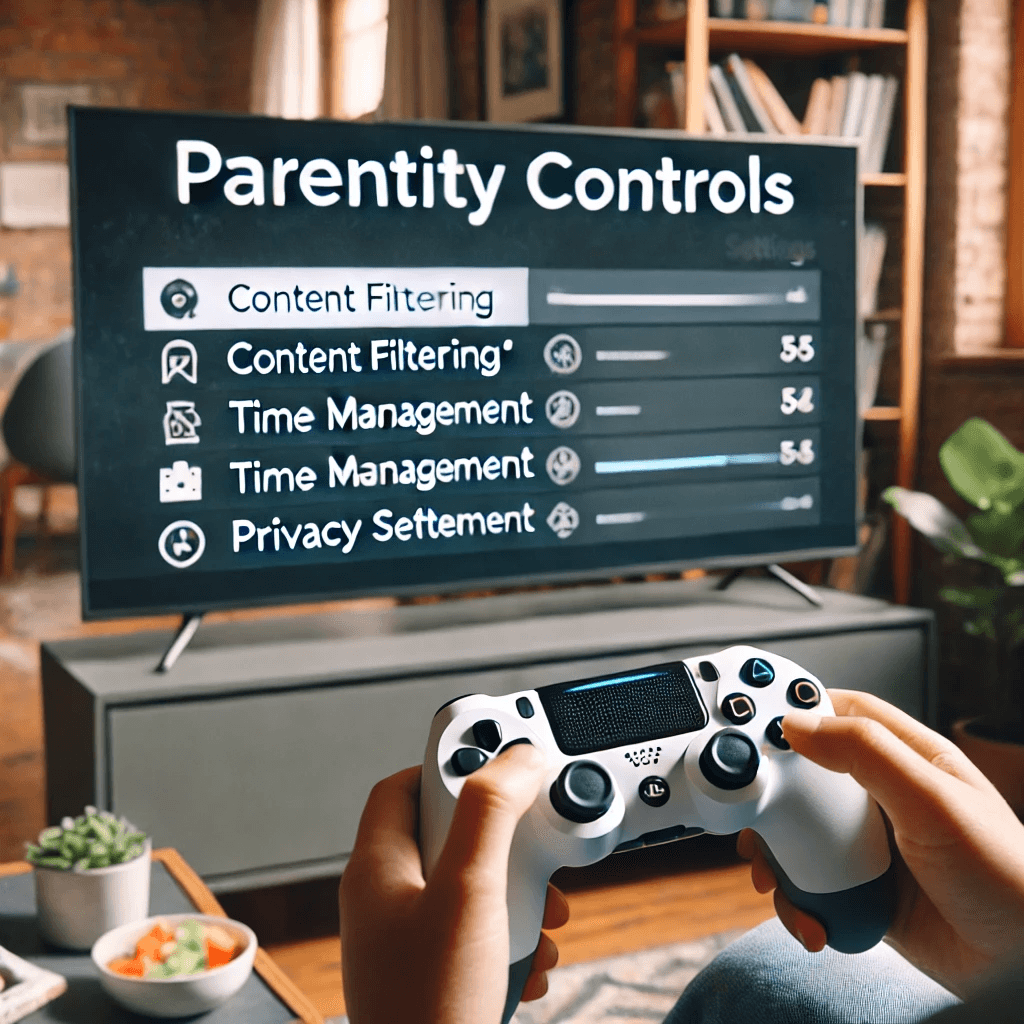
Parental controls come in various forms, each addressing different aspects of a child’s digital experience. Here are the most common types:
- Content Filtering: These tools ensure children only access content appropriate for their age. Content filters block inappropriate websites, videos, and apps, preventing children from stumbling upon harmful or adult material while browsing or watching media online.
- Screen Time Limits: Screen time management tools help parents limit the amount of time children spend on devices. Parents can set daily usage limits for individual apps, games, or the device as a whole, helping prevent excessive screen time and promoting a balanced lifestyle.
- Monitoring Tools: Monitoring tools provide parents with insights into their child’s online activity. These tools track which websites or apps are being used, how much time is spent on them, and what kind of content is being accessed. Some tools even alert parents to potentially unsafe interactions or risky behavior.
Together, these tools offer a comprehensive way for parents to manage their children’s digital experiences and protect them from the dangers of the online world.
Benefits of Using Parental Controls
The advantages of using parental controls extend far beyond simply blocking inappropriate content. They help parents ensure their children are engaging with technology in a safe and healthy way. Some key benefits include:
- Safe Online Environment: Parental controls help ensure that children only access content that is suitable for their age and maturity level. By filtering out harmful material, they help protect children from encountering disturbing or inappropriate content.
- Balanced Digital Habits: Setting limits on screen time encourages children to engage in other activities such as physical play, reading, or spending time with family. This promotes a healthy balance between online and offline activities, helping to reduce the risks associated with too much screen time, such as poor sleep, sedentary behavior, and social isolation.
- Better Monitoring and Control: Parental controls offer valuable tools to track and manage a child’s digital activities. Parents can stay informed about their child’s online behavior, ensuring that they are not exposed to harmful or inappropriate interactions.
Devices and Platforms Supporting Parental Controls
Parental controls are widely available on most devices and platforms, including smartphones, tablets, computers, gaming consoles, and streaming services. These tools are designed to work seamlessly across various devices, helping parents ensure their children are protected, regardless of the platform they are using.
- Smartphones and Tablets: Mobile devices are often the primary way children access the internet. Fortunately, both Apple and Android offer robust parental control options to help parents manage device usage and restrict access to certain content.
- Computers and Laptops: Devices like computers and laptops are often used for both educational and entertainment purposes. Parental controls on these devices can help ensure safe browsing and content filtering while enabling time management for apps and websites.
- Streaming Services: Platforms like Netflix, YouTube, and Disney+ offer built-in parental controls to restrict access to certain shows or movies, ensuring children are only watching content that is appropriate for their age.
- Gaming Consoles: Popular gaming consoles like PlayStation, Xbox, and Nintendo Switch also offer parental control features to limit in-game purchases, restrict communication with other players, and filter game content.
Setting Up Parental Controls on Smartphones and Tablets
Mobile devices are one of the most common ways children interact with the digital world. Setting up parental controls on smartphones and tablets helps manage usage and ensure children are protected from harmful content.
- Apple Devices (iPhones and iPads): Apple’s Screen Time feature provides a robust set of tools for parents. You can set daily limits on app usage, block specific apps, and restrict app purchases. Additionally, Family Sharing allows parents to monitor device activity and set up parental controls for each child’s device.
- Android Devices: Android devices use Google Family Link to help manage and control app permissions, screen time limits, and in-app purchases on Google Play. Parents can also receive activity reports that provide detailed insights into their child’s device usage.
For parents seeking additional features, there are also third-party apps available to enhance parental control options. Apps like Qustodio, Norton Family, and Bark offer comprehensive monitoring, filtering, and time-management tools, providing additional layers of customization and security.
Configuring Parental Controls on Computers and Laptops
Computers and laptops are often used for both schoolwork and entertainment, making parental controls essential for managing online activity.
- Windows PCs: Microsoft Family Safety offers an array of parental control features for Windows users. Parents can set time limits for user accounts, block inappropriate websites, and monitor activity through weekly reports. This ensures that children can focus on their work without being distracted by non-educational content.
- macOS: Apple’s parental controls for macOS are integrated into the System Preferences under the Screen Time section. Parents can monitor app usage, restrict explicit content in Safari, and set time-based restrictions for apps and websites.
Managing Parental Controls on Gaming Consoles
Gaming consoles can be a major source of entertainment, but they also require parental controls to ensure children are not exposed to harmful or inappropriate content while playing. Each console has unique features to help parents manage screen time, content, and interactions:
- PlayStation (PS4 and PS5): Sony’s Family Management system allows parents to restrict communication, set content filters, and manage in-game purchases.
- Xbox (Series X/S and One): Microsoft’s Xbox Family Settings app provides tools to create child accounts with customized privacy settings, restrict multiplayer interactions, and monitor spending limits.
- Nintendo Switch: The Nintendo Parental Controls app offers features like playtime management, content restrictions, and activity logs, providing a user-friendly way for parents to monitor gaming habits.
Setting Up Parental Controls on Smart TVs and Streaming Devices
Many children now access online content through smart TVs and streaming devices. To ensure safe viewing, it’s important to set up parental controls:
- Smart TVs: Most smart TVs offer parental controls, such as PIN codes to restrict specific apps and channels, content filters based on age ratings, and browsing restrictions to limit access to inappropriate websites.
- Streaming Services: Platforms like Netflix, YouTube, and Disney+ have parental control options that allow parents to set up kids’ profiles with appropriate content filters. Other services like Amazon Prime Video and Hulu also offer similar tools to restrict access to mature content.
Best Practices for Using Parental Controls
Parental controls are most effective when combined with proactive parenting strategies. Here are some best practices:
- Communicate with Your Child: Explain the reasons for setting up parental controls. Involving your child in the process helps build trust and encourages cooperation in following the guidelines.
- Regularly Review Settings: As children grow and their digital habits evolve, it’s important to review and update parental controls regularly. This ensures that restrictions remain appropriate for their age and maturity level.
- Balance Technology and Offline Activities: Encourage children to engage in physical activities, hobbies, and family interactions. Establishing device-free times can help foster a healthy balance between online and offline life.
Conclusion
Setting up parental controls on popular devices is an essential step in ensuring your child’s safety in the digital world. By using these tools effectively and combining them with open communication, parents can foster healthy digital habits while protecting their children from inappropriate content and harmful interactions. Parental controls help create a secure and balanced digital environment, giving parents the peace of mind that their children’s online experiences are safe, enriching, and age-appropriate.
Share this content:
