Tips for Improving Your Device’s Performance
In today’s world, smartphones, laptops, and tablets play an integral role in our daily routines. A slow or lagging device can be a significant source of frustration. Whether it’s slow app launches, lagging performance, or battery drain, improving your device’s performance is essential. Fortunately, there are several simple steps you can take to boost your device’s speed and responsiveness. This guide will provide you with practical tips to improve your device’s overall performance.
Clear Up Storage Space
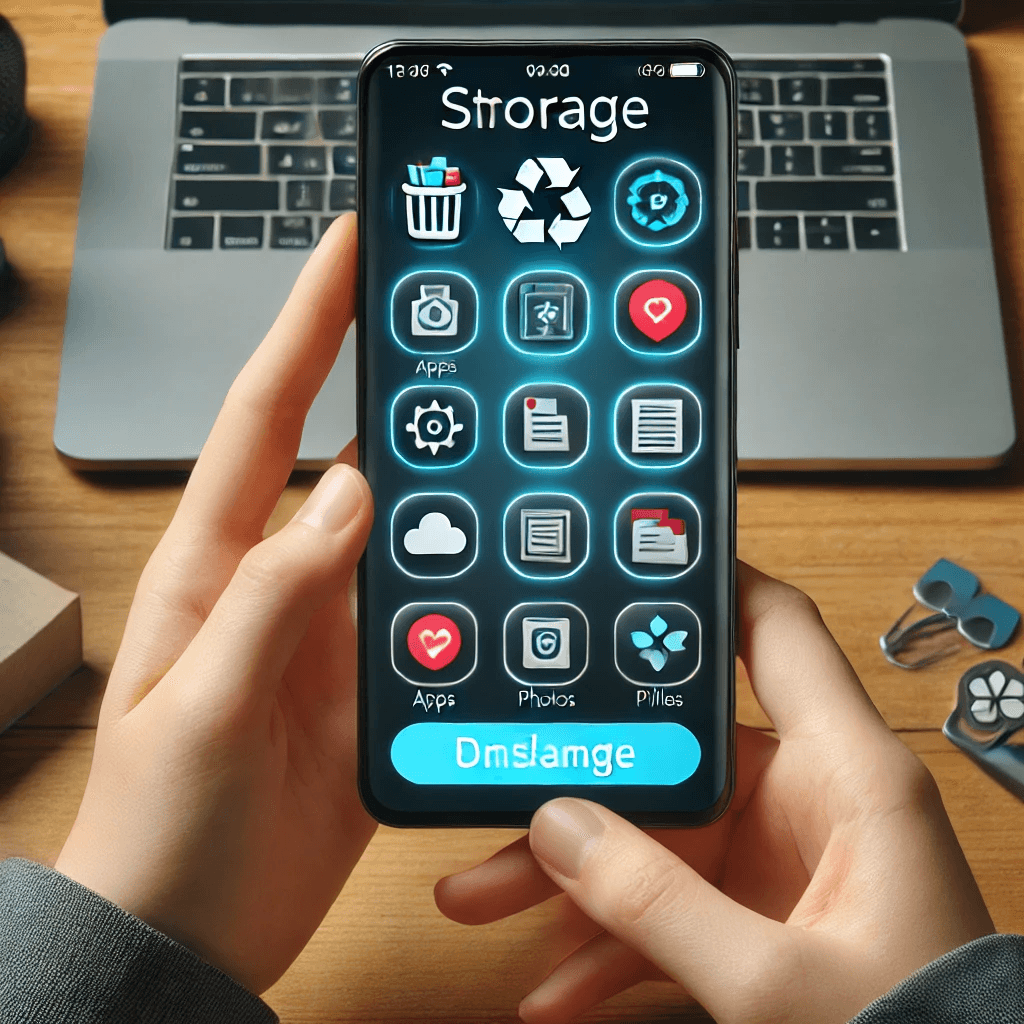
One of the most common reasons for slow device performance is insufficient storage space. Over time, apps, files, and cached data can accumulate, affecting performance. Here’s how to free up space and enhance your device’s efficiency.
Delete Unnecessary Files and Apps
Uninstall apps you no longer use and delete old files that occupy valuable storage. Cleaning up your device helps it run more efficiently.
- Remove unused apps and large files.
- Delete old photos, videos, and documents.
Regularly reviewing your storage ensures better performance and frees up space for more important data.
Use Cloud Storage for Backups
Cloud storage services such as Google Drive, iCloud, and Dropbox allow you to store documents, photos, and videos remotely. This prevents your device from getting cluttered and helps keep it running smoothly.
- Store large files like photos and videos in the cloud.
Cloud storage allows you to access your data from anywhere without taking up valuable local storage.
Clear Cache and Temporary Files
Cached data and temporary files can build up over time, slowing down your device. Clearing these files is a quick and easy way to improve performance.
- On Android, clear cache under Settings > Storage > Cached Data.
- On iOS, clear browser cache or app data through Settings > Safari.
Clearing cache helps free up storage and makes your device more responsive.
Optimize Device Settings
Adjusting your device settings can significantly impact its performance. A few simple changes can help make your device run faster and more efficiently.
Disable Unused Background Apps
Background apps consume valuable resources, which can slow down your device. Closing unnecessary apps helps free up memory and processing power.
- Close unused apps in Settings > Apps (Android) or through the app switcher (iOS).
This simple action will help improve your device’s overall performance.
Adjust Power Settings
Power settings can affect both battery life and performance. Switching to a high-performance mode on laptops and disabling power-saving features on smartphones can enhance speed.
- On Android, enable Performance Mode in Settings.
- On iOS, disable Low Power Mode when charging.
Choosing the right power settings ensures that your device runs optimally when needed.
Turn Off Animations and Effects
Excessive animations and visual effects can slow down older devices. Disabling these effects will help improve responsiveness.
- On Android, reduce animations under Settings > Developer Options.
- On iOS, enable Reduce Motion under Settings > Accessibility.
These small changes can make a noticeable difference in your device’s speed.
Update Software Regularly
Keeping your device’s software up-to-date is crucial for maintaining its performance. Updates often include bug fixes, performance enhancements, and security improvements.
Keep Your Operating System Updated
Updating your device’s operating system ensures that it has the latest security patches and performance enhancements.
- On Android, go to Settings > Software Update.
- On iOS, go to Settings > General > Software Update.
Regular updates keep your device secure and running smoothly.
Update Your Apps
Outdated apps can affect performance and security. Updating apps ensures they run efficiently and securely.
- Enable automatic updates on your device for convenience.
- Regularly check for updates in the App Store (iOS) or Google Play Store (Android).
Up-to-date apps are optimized for speed and functionality, reducing the risk of crashes and slowdowns.
Install Security Patches and Bug Fixes
Security patches and bug fixes are essential for preventing slowdowns and crashes. Regularly installing these updates keeps your device functioning at its best.
- Allow automatic updates for security patches and bug fixes.
Security updates ensure your device runs optimally and remains protected from vulnerabilities.
Free Up System Resources
Excessive programs and inefficient settings can consume system resources, leading to slower performance. Managing these resources can help optimize your device’s performance.
Manage Startup Programs
On laptops and desktops, startup programs can slow down boot times and use system resources unnecessarily. Disabling unnecessary startup programs can improve startup speed.
- On Windows, use Task Manager to disable unnecessary startup programs.
- On macOS, go to System Preferences > Users & Groups > Login Items.
This will help speed up your device’s boot time and free up system resources for other tasks.
Increase RAM or Virtual Memory
If your device is running slow when multiple apps are open, adding more RAM or adjusting virtual memory can boost performance.
- Upgrade your RAM on laptops and desktops.
- Adjust virtual memory settings for better multitasking performance.
More RAM or properly configured virtual memory helps your device handle multiple tasks more efficiently.
Maintain Hardware
Keeping your device physically clean and well-maintained ensures it runs smoothly. Overheating and hardware malfunctions can hinder performance, so proper maintenance is essential.
Clean Your Device Regularly
Dust and dirt can accumulate in your device’s vents and components, causing it to overheat and slow down. Cleaning your device regularly helps prevent these issues.
- Use a microfiber cloth to clean screens and keyboards.
- Use compressed air to clear vents.
This keeps your device cool and functioning properly, preventing heat-related slowdowns.
Check for Hardware Issues
If your device’s performance continues to decline, hardware issues such as a failing hard drive or battery might be the cause. Regularly check for signs of wear and tear.
- Run built-in diagnostic tools to check for hardware issues.
Addressing hardware issues early can prevent further slowdowns and extend your device’s lifespan.
Replace Old Batteries
Old or deteriorating batteries can significantly reduce your device’s performance and battery life. Replacing an old battery can restore your device’s functionality.
- Check battery health on smartphones and laptops.
- Replace old batteries to improve device performance.
A new battery ensures better power efficiency, extending the overall lifespan and performance of your device.
Conclusion
Improving your device’s performance doesn’t require expensive upgrades or complex fixes. By regularly maintaining storage, optimizing settings, keeping software up-to-date, and taking care of your hardware, you can ensure that your device runs at its best. Whether you’re looking to speed up your smartphone, tablet, or laptop, these simple steps will help enhance its overall efficiency. By staying proactive with these tips, you can enjoy a faster, smoother, and more responsive device.
Share this content:
