Tips for Managing Notifications Effectively

In the modern digital world, notifications are constantly interrupting our daily lives. Whether they come from social media, emails, apps, or collaborative tools, these alerts can be overwhelming and disruptive. Effective management of notifications is essential to maintaining productivity, focus, and mental well-being. This article will guide you through practical strategies for managing notifications across various devices and apps to help you stay on track without feeling overwhelmed.
Understanding the Impact of Notifications
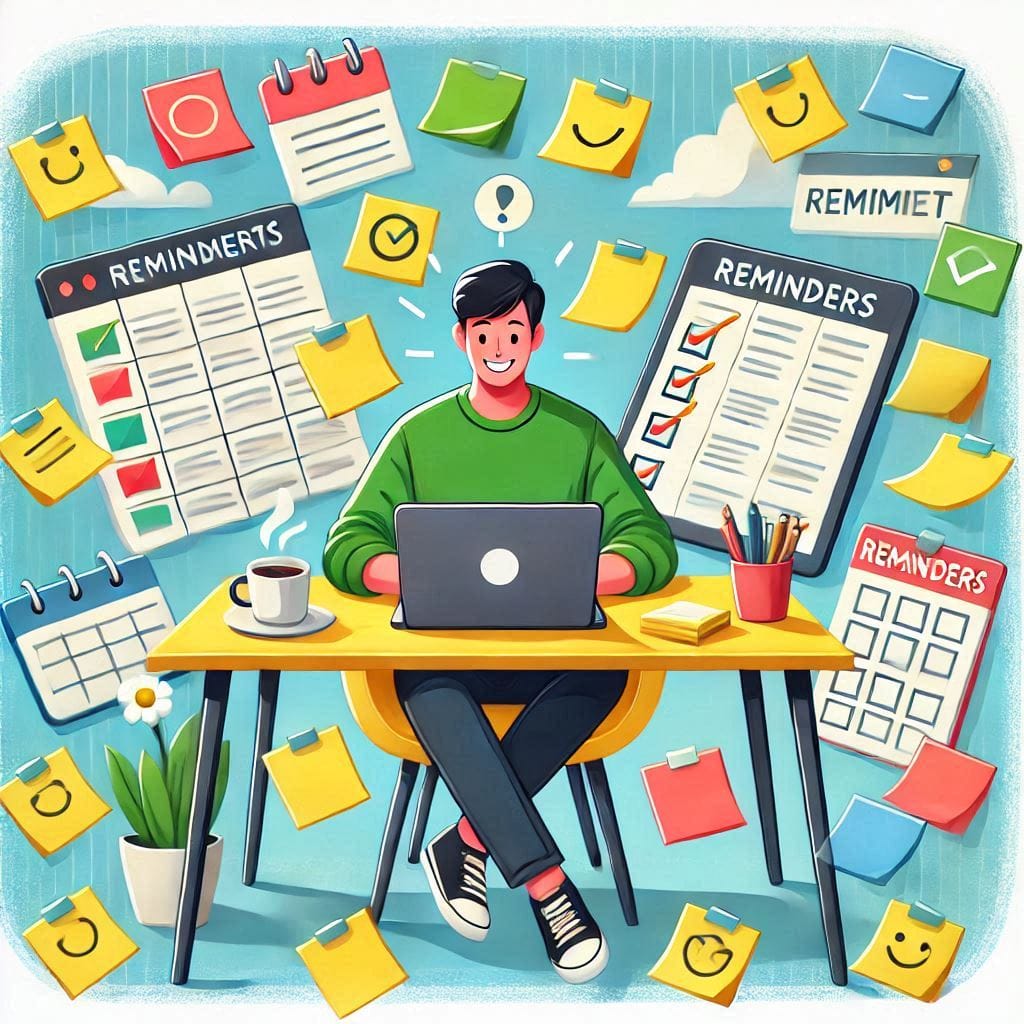
Notifications serve a purpose, but their frequency and nature can impact our daily lives negatively. Understanding how they affect us is the first step in managing them effectively.
The Psychological Effects of Constant Notifications
Constant notifications can lead to stress and anxiety. The “notification ping” activates our brain’s reward system, causing us to feel the urge to check them immediately. This can create a cycle of distraction and stress, making it harder to focus on important tasks.
- They disrupt focus and workflow.
- They contribute to mental fatigue and stress.
- They lead to constant multitasking, which decreases overall productivity.
By managing notifications, we can break this cycle and regain control over our attention.
How Notifications Disrupt Focus and Workflow
Notifications often disrupt deep work and concentration. Every time a notification pops up, our attention is diverted from the task at hand. This constant shifting of focus can lower the quality of our work and lead to delays.
- Interruptions from notifications hinder deep focus.
- It takes time to refocus on tasks after interruptions.
- Important tasks are delayed as a result of constant disruptions.
With proper management, we can reduce these interruptions and increase the time spent on focused, meaningful work.
The Need for Control and Customization
Managing notifications involves customization. Social media, email alerts, and app notifications can all be personalized to suit your specific needs, allowing you to choose which ones are important and which can be muted. Customizing your settings helps create a less stressful and more productive environment.
- Customize notification settings for each app.
- Disable alerts for non-essential apps.
- Prioritize important notifications and mute the rest.
With a few simple changes, you can tailor your notifications to fit your lifestyle and needs.
Customizing Notification Settings Across Devices
Each device has its own methods for controlling notifications, whether on smartphones, laptops, or desktops. Let’s explore how to take control of notifications on different devices.
Managing Notifications on Smartphones
Smartphones are one of the primary sources of notifications. By adjusting your settings, you can prevent constant distractions and manage how and when alerts are received.
- On Android, go to Settings > Apps & notifications > Notifications to prioritize or mute certain apps.
- On iOS, go to Settings > Notifications to select which apps can send alerts and how they appear.
Using features like Do Not Disturb or Focus Mode can help you stay focused during specific periods without distractions.
Controlling Notifications on Laptops and Desktops
Notifications on laptops and desktops can be equally distracting, especially during work hours. Both Windows and macOS offer ways to minimize interruptions.
- On Windows, use Focus Assist to block notifications during specific times.
- On macOS, enable Do Not Disturb through System Preferences > Notifications.
These features ensure that you can work without distractions, allowing for more productive and focused sessions.
Browser Notification Management
Browsers like Chrome, Firefox, and Safari are often filled with notifications from websites. While some notifications can be helpful, many are unnecessary and distracting.
- To block notifications in Chrome, go to Settings > Privacy and Security > Site Settings > Notifications.
- In Safari, go to Preferences > Websites > Notifications to disable notifications from specific sites.
By managing browser notifications, you can reduce unnecessary distractions while browsing the internet.
Prioritizing Important Notifications
It’s essential to prioritize the notifications that matter most to you, ensuring you only receive alerts for critical tasks or communications.
Setting Up Priority Alerts
Not all notifications are equal. Prioritize notifications based on their relevance to your work or personal life. For instance, emails from your boss or messages from close contacts should be prioritized, while social media updates can be muted.
- On Android, you can adjust priority notifications in Settings > Apps & notifications > Notification settings.
- On iOS, use the Emergency Bypass feature for urgent contacts in Settings > Contacts > select a contact > Edit.
By customizing your alerts, you can ensure that only the most important messages demand your attention.
Using “Quiet Hours” for Personal Time
Creating designated quiet hours helps you achieve a balance between work and relaxation. These hours ensure you won’t be interrupted by non-urgent notifications during your downtime.
- Set up Do Not Disturb on both iOS and Android during your personal time or when you need focus.
- You can adjust quiet hours to apply automatically during specific periods, such as evenings or weekends.
Using quiet hours promotes a healthier work-life balance and reduces stress caused by constant notifications.
Prioritizing Social Media Alerts
Social media notifications can be overwhelming, with constant updates, likes, and comments. Customizing your social media notification settings can help you stay informed without being inundated with unnecessary alerts.
- On Instagram, adjust settings by going to Settings > Notifications and selecting which updates you want to receive.
- On Facebook, you can mute notifications for specific people or activities through the Notification Settings.
By managing notifications for social media, you can stay connected without feeling overwhelmed.
Best Practices for Managing App Notifications
Apps can be the biggest culprits when it comes to notification overload. By reviewing and customizing app notification settings, you can control which alerts are necessary and which are not.
Turn Off Non-Essential App Alerts
Many apps push unnecessary notifications that can disrupt your day. Identify these apps and disable their notifications to reduce interruptions.
- In iOS, go to Settings > Notifications and toggle off apps that are not necessary.
- On Android, head to Settings > Apps & Notifications > Notifications and select which apps to mute.
By turning off non-essential alerts, you can keep your device from becoming a constant source of disruption.
Use In-App Notification Preferences
Many apps allow you to adjust how often and when notifications are sent. Take the time to configure these settings to only receive notifications when they truly matter.
- In apps like Gmail, you can set up specific notifications for important emails only.
- In Slack, customize notification preferences for channels, messages, and mentions.
These preferences can help ensure that you only receive alerts for the most relevant information.
Opt for Summary Notifications
Instead of receiving constant real-time notifications, many apps allow you to get a summary of notifications at specific intervals.
- Email apps often offer daily or weekly digests.
- News apps allow you to receive summaries instead of continuous updates.
Summary notifications allow you to stay updated without being overwhelmed by constant alerts.
Conclusion
Managing notifications is key to maintaining productivity, focus, and mental well-being in the digital age. By understanding the impact of notifications, customizing settings across devices, prioritizing important alerts, and following best practices for managing app and social media notifications, you can regain control over your digital life. Implementing these strategies will help reduce distractions, improve focus, and ensure you receive only the notifications that matter most to you.
Share this content:
